Mobile menu toggle

iPhone - page 2

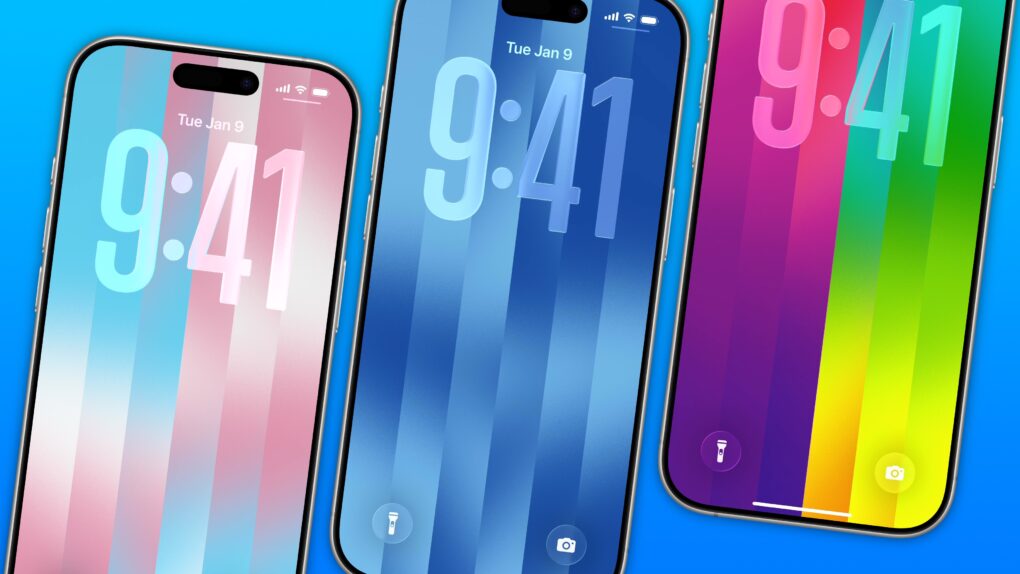
How to set up the colorful Luminance wallpaper in iOS 26.5

By

iPhone Luminance wallpaper Lock Screen showing trans colors, LGBTQ Pride colors and blue colors
The dazzling new wallpaper for iPhone.
Image: D. Griffin Jones/Cult of Mac

The colorful Pride Luminance wallpaper and watch face add beautiful color gradients to your iPhone and Apple Watch. You can download them both after updating to iOS 26.5 and watchOS 26.5.

Since they’re part of Apple’s annual Pride collection, they come with a bunch of preset styles for various pride flags. But you can customize the Lock Screen wallpaper and the Apple Watch face however you want. With a light and dark shade of the same color, the vertical stripes and gradients shimmer and animate when you swipe up to unlock your phone. Or you can go to the other extreme, picking up to 12 colors from the Luminance palette.

This is easily the best Pride wallpaper Apple has produced yet — in fact, it’s a great wallpaper, period. Check it out in our quick video or keep reading.

5 secret tips and tricks in Safari on iPhone

By

5 Safari Tricks & Secrets
Get the most out of the browser in your pocket.
Image: D. Griffin Jones/Cult of Mac

Since I spend a lot of time using Safari on my iPhone, any new tips and tricks I learn can feel life-changing. Apple’s mobile web browser proves absolutely instrumental to my iPhone usage (and odds are, it does for you, too).

Here are a few of my favorite hidden features. These Safari tips will help you browse the web faster, clean up your experience and restore tabs you accidentally close. I also have a handy shortcut you can download at the end.

Keep reading or watch our video.

Today in Apple history: Bill Gates predicts doom for Apple’s biggest product

By

Bill Gates on iPod: Smartphone sales will doom music players.
Unfortunately for Bill Gates, Steve Jobs was one step ahead.
Photo: 60 Minutes

May 12: Today in Apple history: Bill Gates predicts doom for iPod, Apple's biggest product May 12, 2005: Longtime Apple frenemy Bill Gates tells a German newspaper that Apple may have hit it big with the iPod, but that its success isn’t going to last forever.
The reason for the Microsoft co-founder’s doomy take on the iPod’s future? He thinks mobile phones will steal the music player’s market share.

The good news for Gates is that he was right on the money. The bad news for Microsoft is that Apple cannibalized itself by making the iPhone. And Apple’s smartphone became even more successful than the iPod.

These US carriers now support encrypted RCS messaging

By

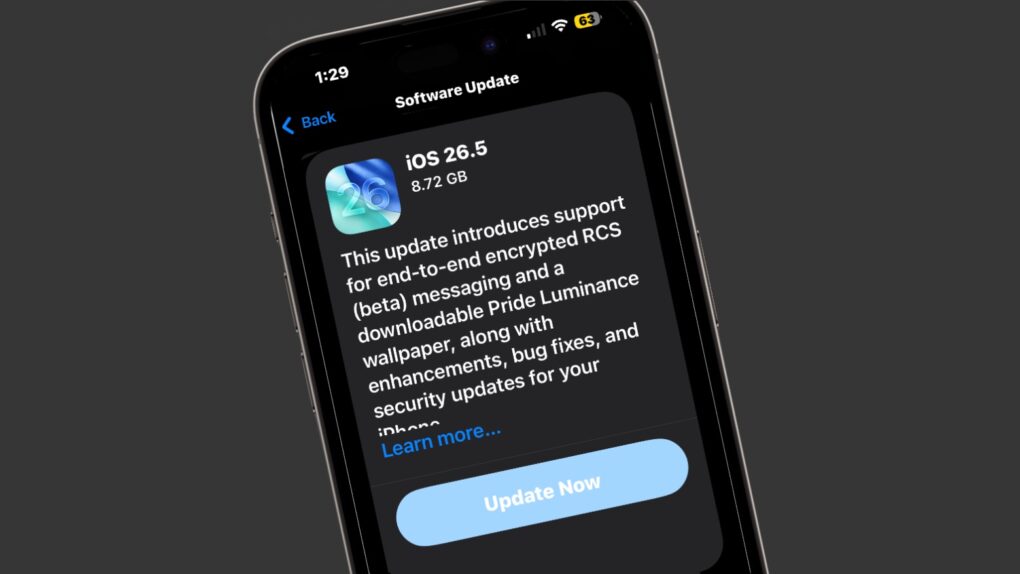
iOS 26.5 brings in encrypted RCS messaging between iPhone and Android
Test messages exchanged between iPhone and Android are now secure... if you're using one of these carriers.
Image: Cult of Mac

Apple’s newly released iOS 26.5 update supports end-to-end encryption for RCS messaging between iPhones and Android devices.

However, the feature requires the cooperation of wireless carriers. Fortunately, Apple released a list of which ones do, and all three of the biggest U.S. carriers are on board: AT&T, T-Mobile and Verizon.

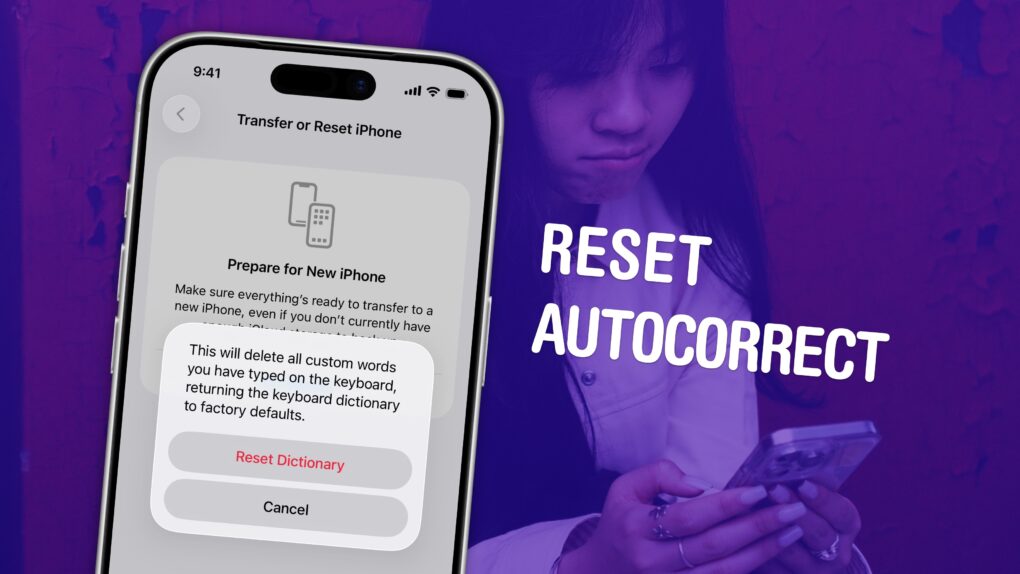
Fed up with iPhone autocorrect? Here’s how to reset it.

By

How to Reset Autocorrect on iPhone graphic, with a photo of a woman looking annoyed at an iPhone
Put a stop to the madness.
Image: D. Griffin Jones/Cult of Mac

If you’ve noticed that the iPhone’s autocorrect has been especially bad over the last few months, you’re not alone. It appears that iOS 26.2 introduced a bug that made the keyboard much more frustrating to use. Luckily, the solution is simple. You can learn how to reset autocorrect on your iPhone really quickly. 

First, you need to update to iOS 26.4, the release that fixed the iPhone’s autocorrect bug. Then, resetting your keyboard dictionary will get rid of any bad patterns it may have picked up since December. 

Keep reading or watch our quick video.

Cash in on Siri’s stupidity [Cult of Mac podcast No. 19]

By

Photo of an iPhone with Siri running
Will you get your slice of the stupid Siri pie?
Image: appshunter.io/Unsplash License/Modified by Cult of Mac

This week on the Cult of Mac podcast: We’ve been complaining about just how stupid Siri can be for years, but Apple’s failure to deliver a promised AI upgrade just cost the company a cool $250 million.

We discuss how you can get your sliver of that payout, whether a stupid Siri is a deal-breaker (obviously not, since we all swear by our iPhones), and how Apple can really make things right.

Also on the Cult of Mac podcast:

  • The MacBook Neo is so popular that Apple totally missed the boat on its projections. Now the company is making an unusual move — and it might mean the budget laptop goes up in price.
  • If you’ve been waiting for the perfect time to buy a Mac, it’s here.
  • After getting banged up for its lack of savvy when it comes to artificial intelligence, Apple looks ready to win the AI wars, thanks to its brilliant strategy.
  • And finally, Griffin goes over the pros and cons of an affordable home rowing machine. Come for the review, stay for the extremely weird Ohio hallway.

Listen to this week’s episode of the Cult of Mac podcast in the Podcasts app or your favorite podcast app. (Be sure to subscribe and leave us a review if you like it!) Or watch the video version, embedded below.

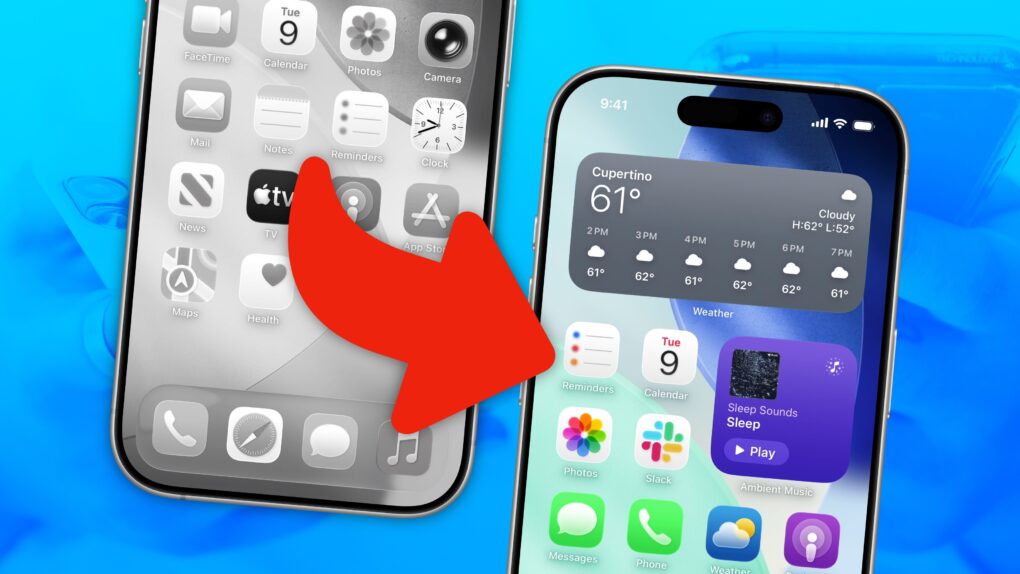
My top 3 tips for making an iPhone Home Screen that doesn’t suck

By

Graphic showing an iPhone Home Screen, before and after removing a bunch of icons and adding widgets
Turn your scramble of icons into something that sparks joy.
Image: D. Griffin Jones/Cult of Mac

There are two types of iPhone owners in the world: Those with a carefully manicured, minimalist Home Screen of perfectly arranged icons, and those with random icons spilled haphazardly across the screen.

If you find yourself among the latter group, you might think that it’s too late for you — that making a beautiful, aesthetic Home Screen is beyond your creative ability. 

Well, cleaning up your iPhone’s Home Screen is a lot easier than clearing out your basement or organizing your kitchen junk drawer. A Home Screen that works better and looks better comes down to just a few simple tips. You can set one up in just minutes.

Here’s how.

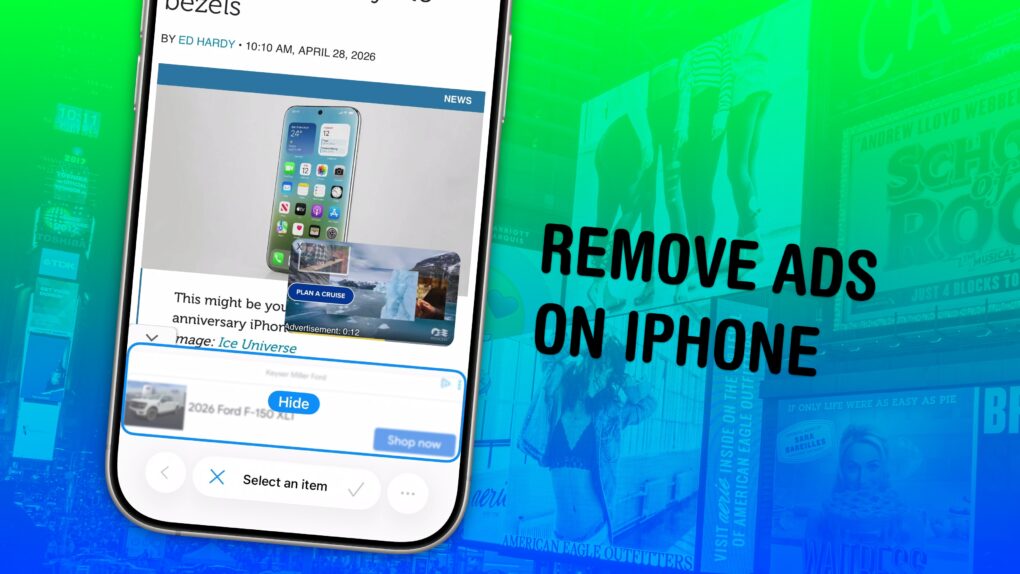
How to block ads (and other distracting things) on iPhone for free

By

Image showing the Hide Distracting Items feature hiding a banner ad, with a photo of a bunch of billboards, captioned “Remove Ads on iPhone”
Simplify the web, one annoyance at a time.
Image: D. Griffin Jones/Cult of Mac

Safari’s Hide Distracting Items feature lets you remove ads from your iPhone, along with other elements on the page that irritate you. It doesn’t require an ad blocker or a paid extension — Apple built it right into the browser.

Hide Distracting Items is not an ad blocker per se. But if pop-ups and other items that cover the page with no obvious close button pester you (like a cookie banner) Hide Distracting Items can come to the rescue. Here’s how to use it — keep reading or watch our video.

5 major roadblocks when switching from Android to iPhone

By

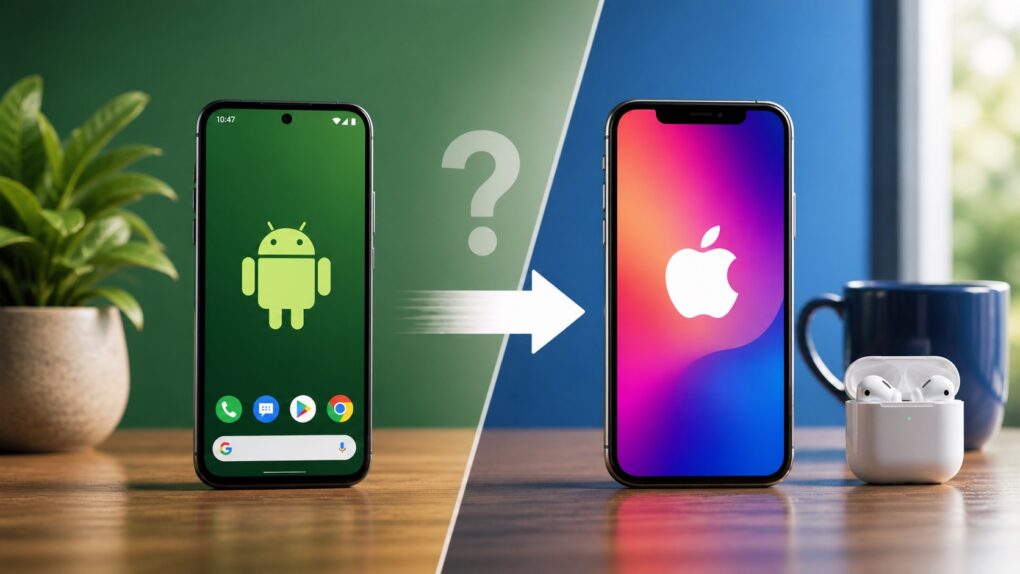
AI-generated image showing an Android phone and an iPhone, with an arrow pointing from the Android to the iPhone (along with a question mark).
Moving from Android to iPhone means adjusting to a different way of doing things.
AI image: ChatGPT

Ready to switch from Android to iPhone? Before you make the move to an Apple device, you need to know the biggest problems you’ll face during the transition — and how to avoid them.

While some challenges are manageable, others are unavoidable. If you feel ready to jump to Apple’s ecosystem from Google land, here’s what you need to know.

Apple could remove a key iPhone Wallet app limitation with iOS 27

By

Create your own passes in Apple Wallet with iOS 27
Soon it might not matter than your gym doesn't have an app that supports Apple Wallet.
AI image: Gemini/Cult of Mac

iOS 27 will bring a long-requested upgrade to the iPhone Apple Wallet application: the ability for users to create their own passes directly within the app, according to report published Monday. 

If true, this would significantly expand how iPhone owners manage everyday cards and tickets with the app.

Here’s when Apple will launch iOS 26.5

By

iOS 26.5 release date
iOS 26.5 is just a week away!
Image: Cult of Mac

Apple on Monday seeded the iOS 26.5 Release Candidate to beta testers, signaling that eager iPhone users should circle May 11 on their calendars. The major new feature is fully secure, encrypted messages when using RCS… though this will remain in beta even after iOS 26.5 launches.

Monday also brought the macOS Tahoe 26.5 Release Candidate, as well as equivalents for iPad, Apple Watch, Apple TV and more.

How to hide your secret iPhone photos

By

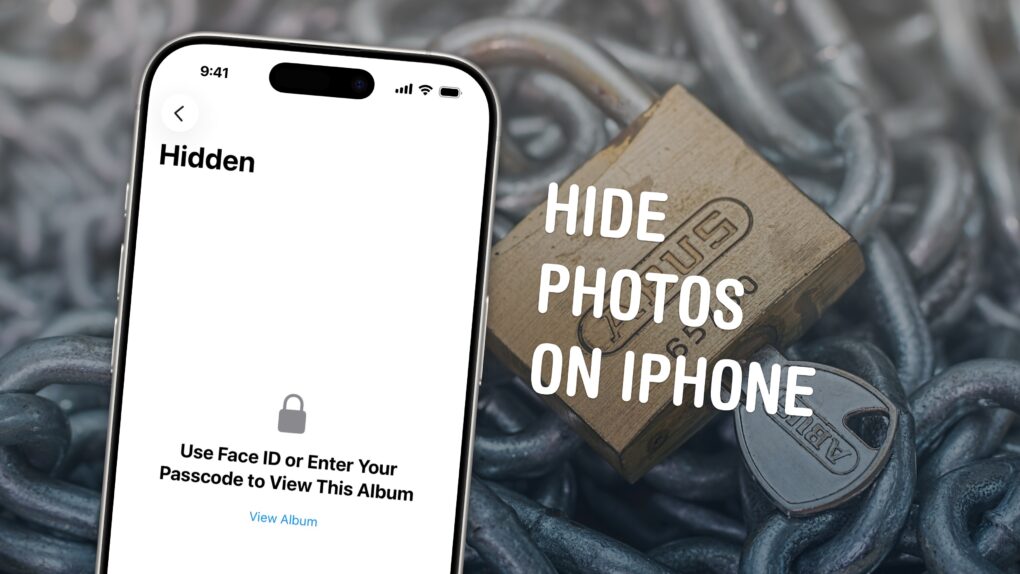
Hide Photos on iPhone graphic, showing the hidden folder album in Photos with a photo of a bunch of padlocks and chains
Keep your photos locked up like Fort Knox.
Image: D. Griffin Jones/Cult of Mac

You can easily hide photos and videos on your iPhone to keep secret and/or illicit images out of your main Photos library. Hiding items from the camera roll makes sure nobody except you can see your embarrassing pictures, salacious nudes or old selfies with your ex.

Apple introduced the Hidden photo album years ago in iOS 8. But after Apple redesigned the Photos app in iOS 18, you can no longer find it at the bottom of the Albums tab — because the tab bar is gone. But in iOS 26, it’s back again!

Here’s what hiding photos does to your iPhone, how you can stash those incriminating or mortifying pix, and where to find them.

Why Apple cannot unlock your deceased relative’s iPhone

By

The reason Apple cannot unlock a deceased person’s iPhone
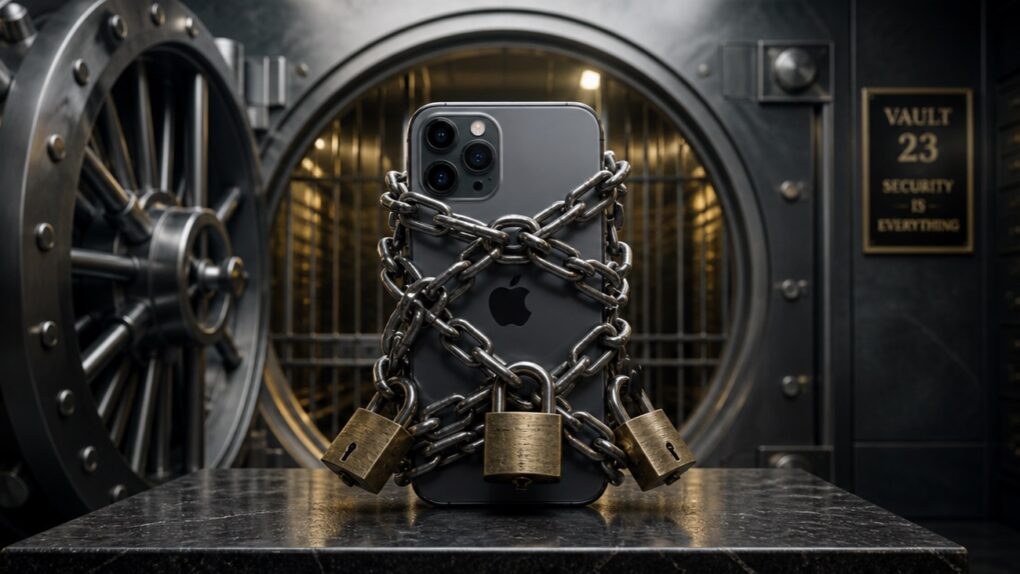
An iPhone locked with a passcode is more secure than any bank vault.
AI image: ChatGPT/Cult of Mac

A very sad day has come, and a beloved relative has passed away. And it seems Apple is making the experience worse because it refuses to unlock the deceased person’s iPhone!

It’s not that Apple refuses to — it literally cannot. And it all comes down to the way encryption works.

Fortunately, there’s a simple way to prevent this problem. It just takes some preparation.

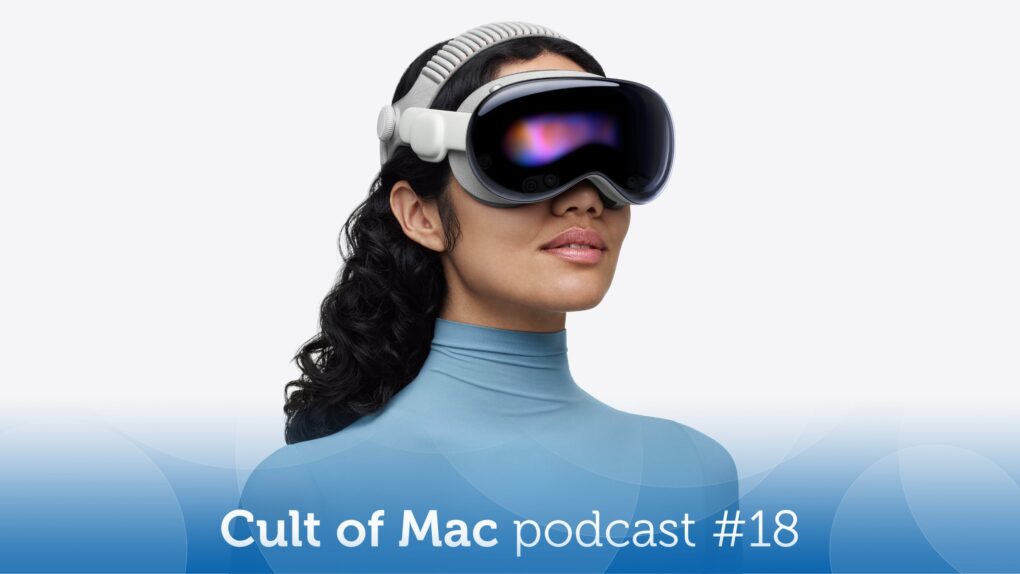
What’s the future for the Vision Pro? [Cult of Mac podcast No. 18]

By

Product shot of a woman wearing an Apple Vision Pro headset, with the words
Apparently it's time to ponder the future of Apple's pricey headset.
Image: Cult of Mac

This week on the Cult of Mac podcast: A slightly suspect rumor indicates Apple pulled the plug completely on the Vision Pro headset. Can that really be true? What does the future hold for the Vision Pro, visionOS and Apple’s rumored smart glasses?

Also on the Cult of Mac podcast:

  • The latest rumor about the 20th anniversary iPhone leaves Leander sputtering. But actually, it looks pretty cool.
  • Apple reportedly plans to inject tons of AI into the iPhone’s camera in iOS 27. We could see interesting photo-editing tools as well as Visual Intelligence baked right into the Camera app.
  • And finally, Griffin gives us his first impressions of adjustable dumbbells from Feierdun. Nobody could see this coming!

Listen to this week’s episode of the Cult of Mac podcast in the Podcasts app or your favorite podcast app. (Be sure to subscribe and leave us a review if you like it!) Or watch the video version, embedded below.

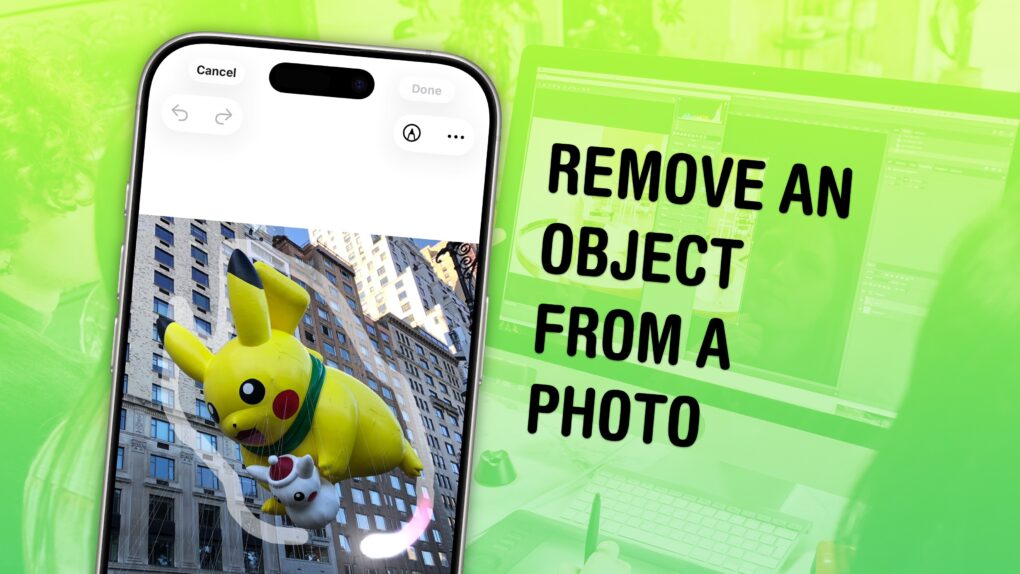
How to remove an object from a photo with Apple Intelligence

By

Graphic showing the Image Clean Up tool in Photos, captioned, “Remove an Object from a Photo”
You don’t have to be a Photoshop master to edit things out of your photos.
Image: D. Griffin Jones/Cult of Mac

You can easily remove any object from a photo using Apple Intelligence’s free Clean Up tool on your iPhone, Mac or iPad. It works fairly well — but it’s good to know its limitations.

As the only graphic designer among my friends, I’ve frequently been asked over the years to Photoshop unwanted elements out of pictures. Take, for example, a romantic shot of a couple in a gazebo, with a phone sitting on the handrail in an obvious spot. The image might look a lot better if you delete that stray device.

Or imagine a group photo from a fun night out, with someone’s dumpy tote bag sitting by their feet, or a picture from a big conference that shows an ugly lanyard around someone’s neck. With Apple Intelligence’s free Clean Up feature, anyone can make the tote bag and the lanyard disappear, right from their iPhone.

Now, you have the power to clean up your own photos — a chance to make your almost-perfect shots perfect in an instant. 

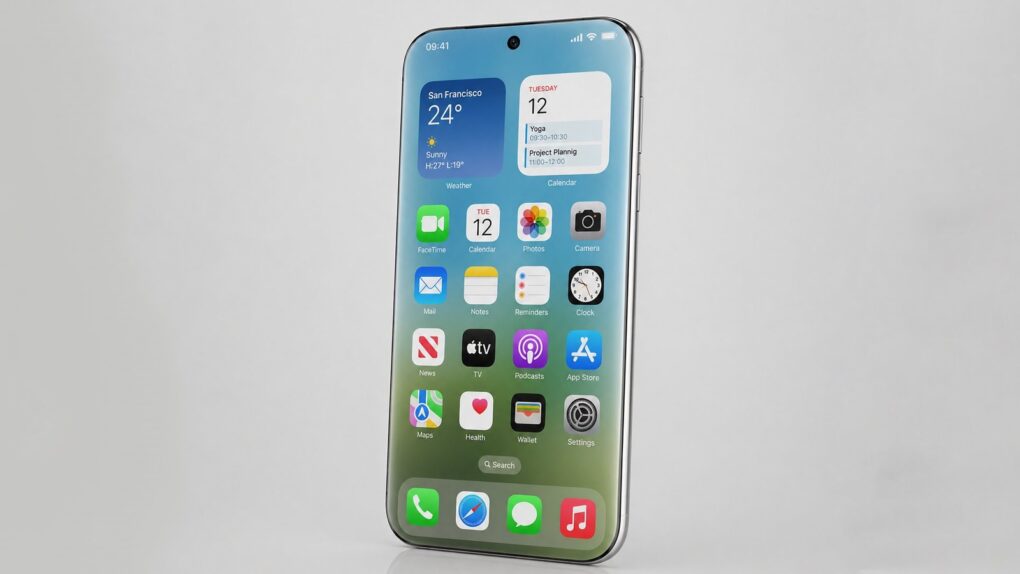
20th anniversary iPhone could say goodbye to bezels

By

20th anniversary iPhone concept
This might be your first glimpse of the 20th anniversary iPhone.
Image: Ice Universe

Apple could be preparing one of the most dramatic iPhone redesigns in its history, with a 20th anniversary model that appears to eliminate screen bezels entirely.

It seems Apple users won’t need to go with the upcoming folding iPhone to get an iOS handset with an innovative design.

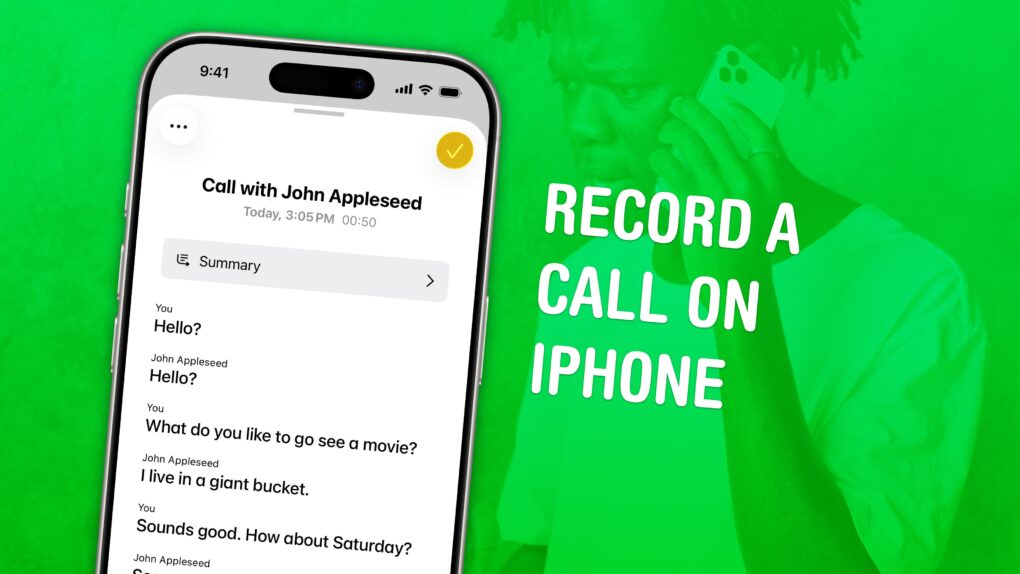
Easy way to record and transcribe your iPhone calls

By

Image showing the transcription of call recording on an iPhone, with the caption, “Record a Call on iPhone,” with a photo of someone talking on the phone.
Check back what they really said.
Image: D. Griffin Jones/Cult of Mac

You can record a phone call on your iPhone for future reference using a built-in tool. This feature is a great way to refer back to a previous conversation. Who said what? What date did they say? What exactly did you agree to?

If your device supports Apple Intelligence, you’ll get transcriptions of the phone calls, too. They’ll go in a Call Recordings folder in the Notes app.

If you used a shady call recording app before, you can bid it adieu. There’s a convenient button built right into the Phone app. Here’s how it all works.

Reversing course, OpenAI quietly builds a smartphone to rival iPhone

By

OpenAI secretly developing iPhone competitor
OpenAI might come out with a smartphone after all.
Photo: Unsplash

OpenAI has been secretly developing a smartphone designed to compete directly with iPhone, supply chain analyst Ming-Chi Kuo said Sunday. It’s a significant reversal from the company’s previously stated hardware strategy, which included smartphone alternatives like AI companion devices.

Why all iPhone 18 models will include 12GB of RAM

By

iPhone 18 leak suggests bigger RAM for non-Pro buyers
Expect the iPhone 18 to look much like its predecessor, but with internal upgrades.
Photo: Apple

Apple could deliver a significant performance upgrade to the base iPhone 18, with the smartphone potentially receiving a major increase in RAM — up to 12GB — according to a new analyst report.

This comes despite an ongoing RAM shortage that’s driving up prices of rival devices. But keeping up with AI probably doesn’t give Apple much choice.

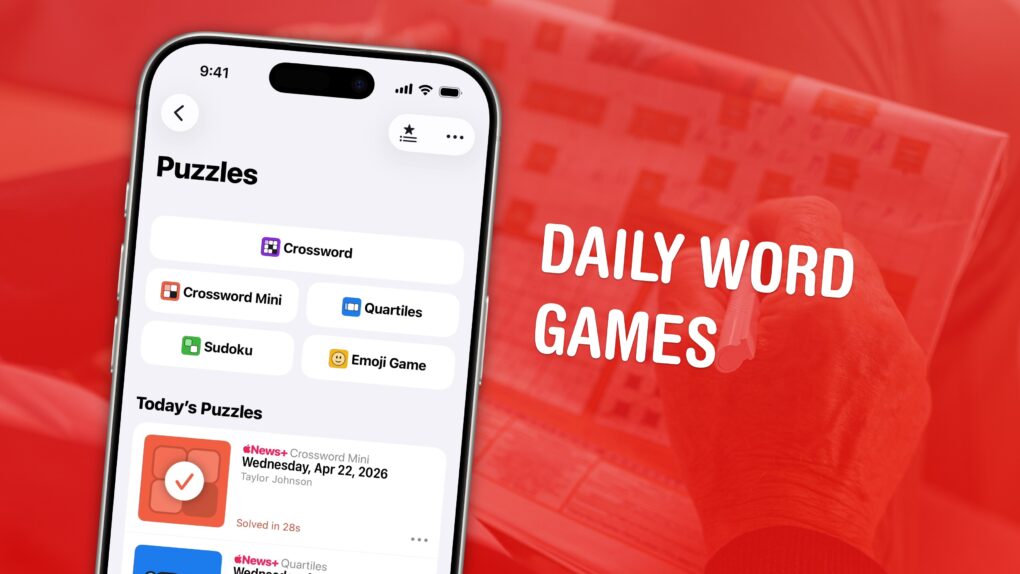
4 daily games I love to play in Apple News+ (and one I despise)

By

Graphic showing Apple News+ Puzzles with a photo of a man playing a newspaper crossword, captioned “Daily Word Games”
Get your puzzle fix right from the News app.
Image: D. Griffin Jones/Cult of Mac

The daily games hiding inside the News app are my favorite puzzles to play. Some are digital versions of classic games like crossword puzzles and sudoku. Others are entirely new.

All five games are available to all Apple News+ and Apple One Premier subscribers. Here’s how to play each of the daily word games in Apple News+ on iPhone. Check them out in this quick video.

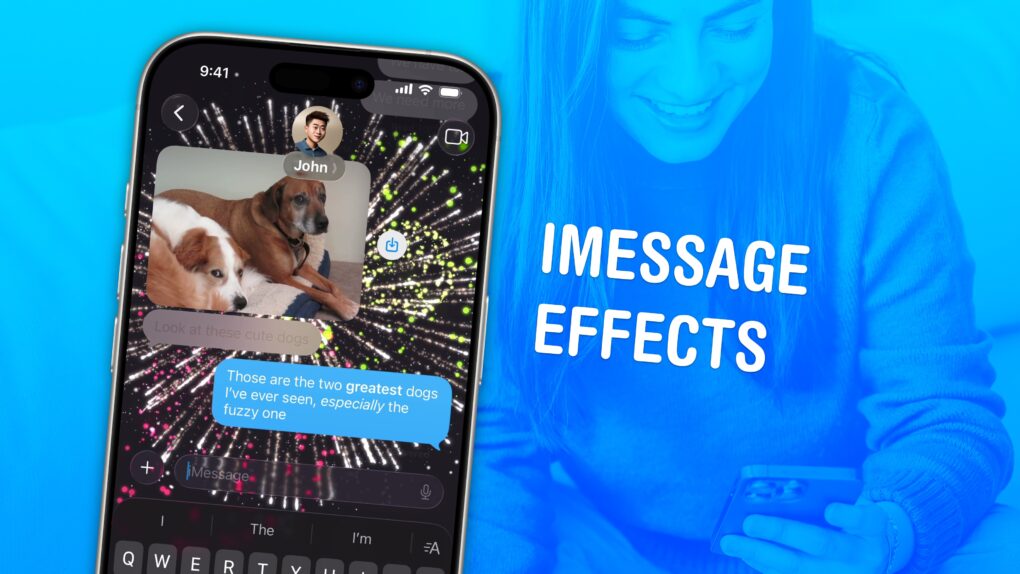
4 ways to make your texts less boring with iMessage effects

By

Image of an iMessage being sent with fireworks and a photo of a woman smiling at an iPhone, captioned “iMessage Effects”
Spruce up your texting with iMessage effects.
Image: D. Griffin Jones/Cult of Mac

iMessage effects can add extra meaning, emotion and fun to your texting. In Apple’s Messages app, you can add bolditalicsunderline and strikethrough text, just like in a formatted document. You can even choose from a bunch of cool, animated effects, including full-screen blasts of lasers, confetti and fireworks.

Apple’s text message effects can make quite an impression. You can make congratulations more bombastic (to rejoice in someone’s finest moments). Or, you can use formatting and effects to convey sarcasm, stress and sorrow more clearly.

These text effects are fun and incredibly useful. Keep reading below or watch our video.

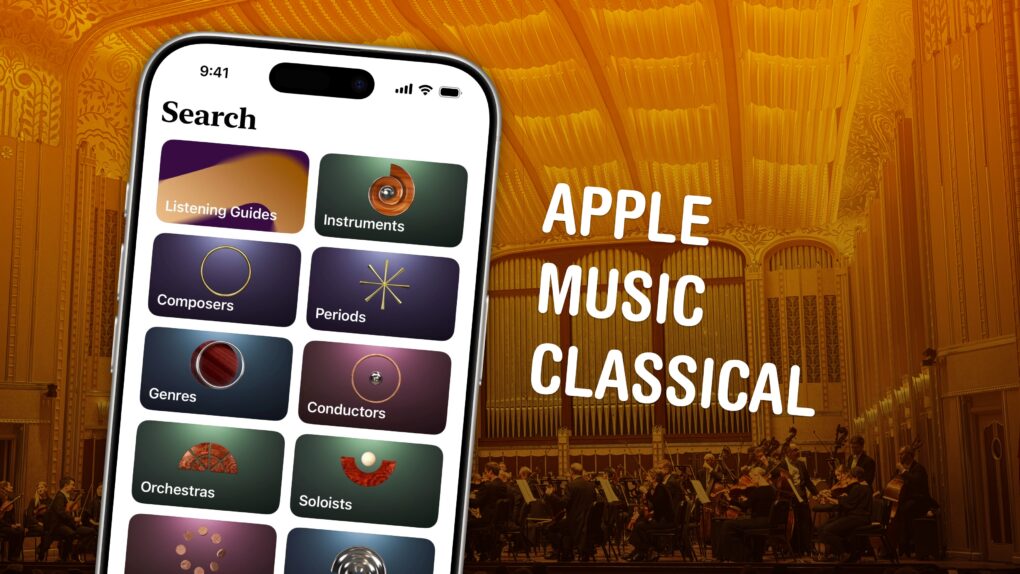
Get started with Apple Music Classical: A simple how-to guide

By

Apple Music Classical graphic, showing the browse features and a photo of The Cleveland Orchestra.
Apple Music Classical is an elegant streaming service for a more civilized age.
Image: D. Griffin Jones/Cult of Mac

Apple Music Classical is an iPhone app specifically designed to deliver a great experience browsing and listening to instrumental music. Apple carefully curated its catalog of millions of tracks, tagging them by composer, work, movement, instrument, orchestra, artist and more.

Why does there need to be a separate app for classical music? Apple says it succinctly on its support page: Classical music “has longer and more detailed titles, multiple artists for each work, and hundreds of recordings of well-known pieces.” This app “is designed to support the complex data structure of classical music.”

This is how to discover, find, add and listen to music in Apple Music Classical.

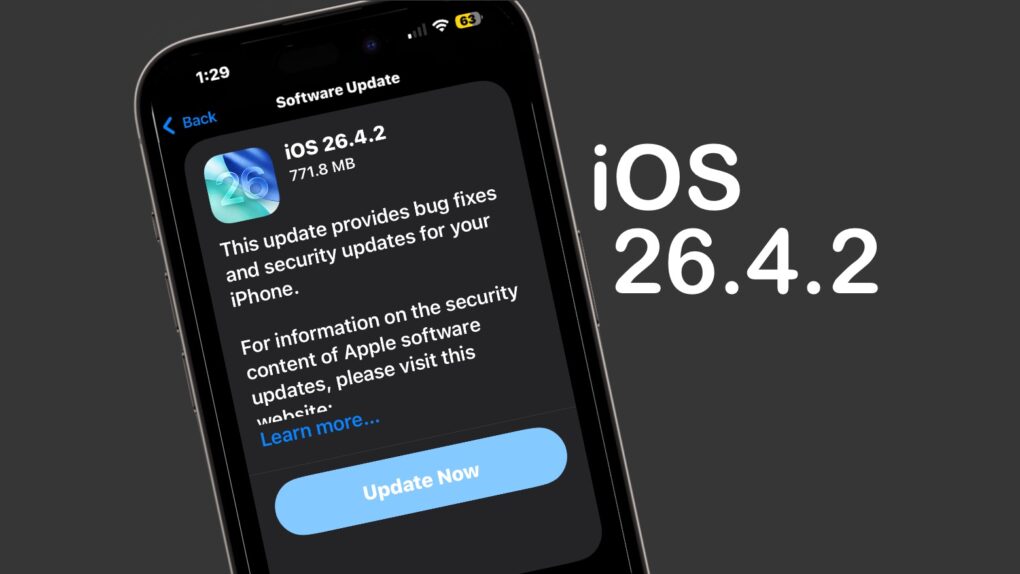
Apple releases iOS 26.4.2, which ensures deleted messages actually disappear [Updated]

By

Apple releases iOS 26.4.2 with focus on stability and security
Update your iPhone today to get rid of bugs.
Screenshot: Cult of Mac

Apple on Wednesday released iOS 26.4.2 to fix a bug that allowed messages deleted by a user to remain on the iPhone.

“Notifications marked for deletion could be unexpectedly retained on the device,” Apple said in its security notes about the update. “A logging issue was addressed with improved data redaction.”

Beyond that, it seems like a minor update that focuses on various bug fixes and incremental performance improvements rather than new features. Tablet users got iPadOS 26.4.2 at the same time.

Plus, those not yet willing to make the jump to iOS 26 got their own update — iOS 18.7.8 also appeared on Wednesday, along with iPadOS 18.7.8.

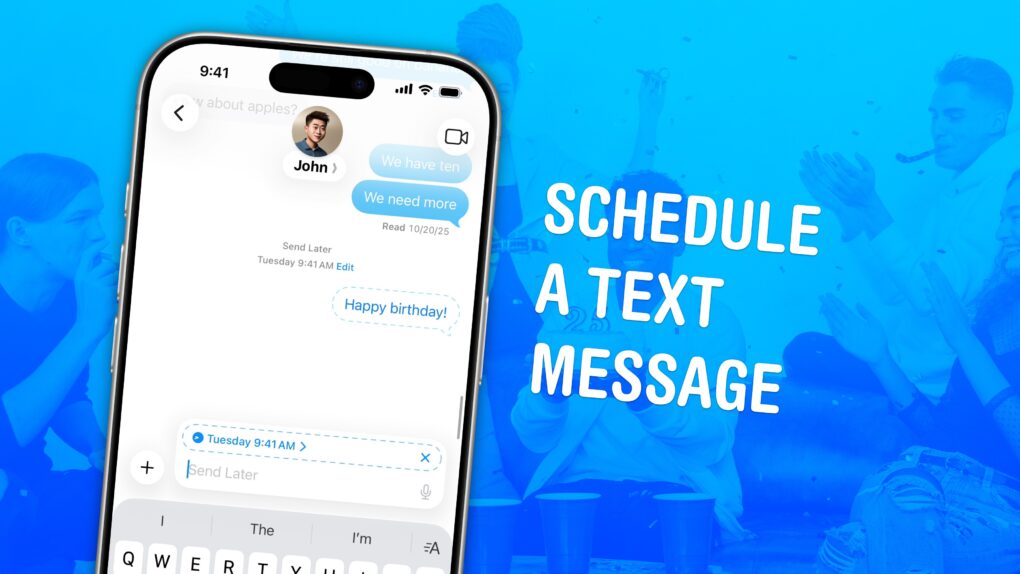
How to schedule texts and send messages later on iPhone

By

Image showing how to schedule a text message on iPhone with a photo of a birthday party
Never miss the customary “Happy birthday” text again.
Image: D. Griffin Jones/Cult of Mac

If you know how to schedule texts on iPhone, you can make sure you never forget to send a reminder, birthday greeting or early morning message for someone in a different time zone. You can schedule a whole slew of texts up to a week in advance, with links, photos, attachments and more, using the iPhone’s Send Later feature.

This can save your bacon if you’re the type of person who forgets to text someone later. And it’s really easy to do, once you figure out how to use the somewhat hidden feature. Watch our quick video.

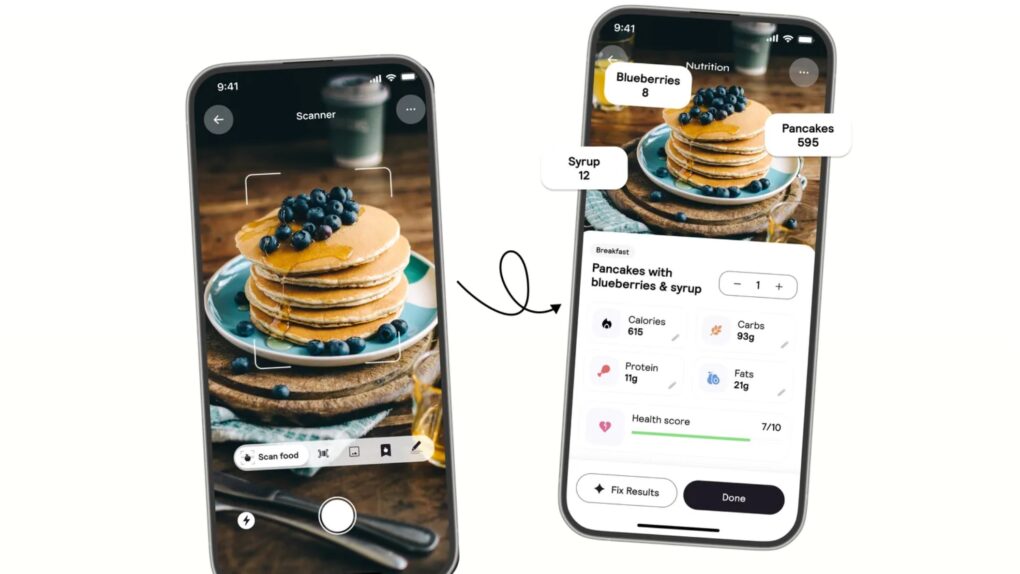
Why did Apple suddenly remove a top fitness app?

By

why App Store pulled Cal AI app
The popular Cal AI app violated a handful of App Store guidelines, according to Apple. It's still keeping a close eye, apparently.
Photo: Cal AI

Apple briefly removed the popular calorie-counting app Cal AI from the App Store last week. The episode offers a clear message to developers everywhere, according to a new report: The company is still very much in charge of how apps handle payments — even in the wake of a landmark court ruling that loosened some of its long-standing rules.