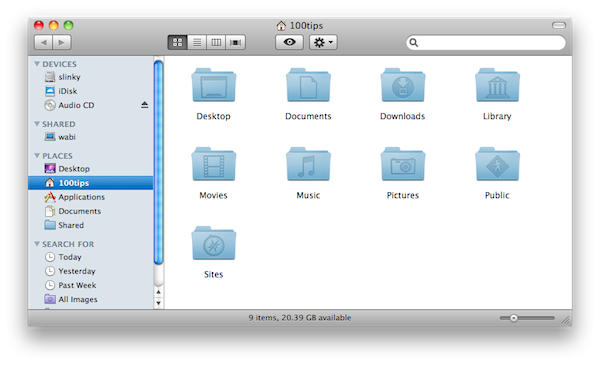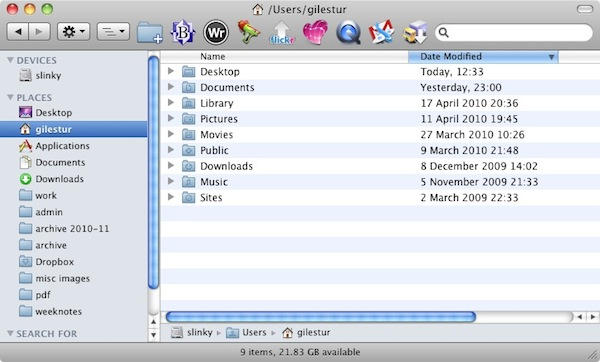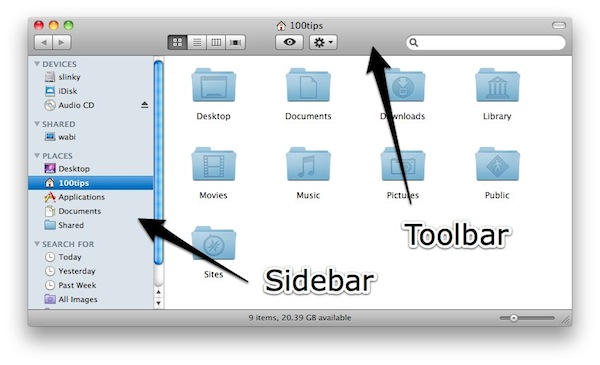
Waaaay back in Tip #9, I said we’d take a closer look at the Finder sidebar. Let’s do that right now.
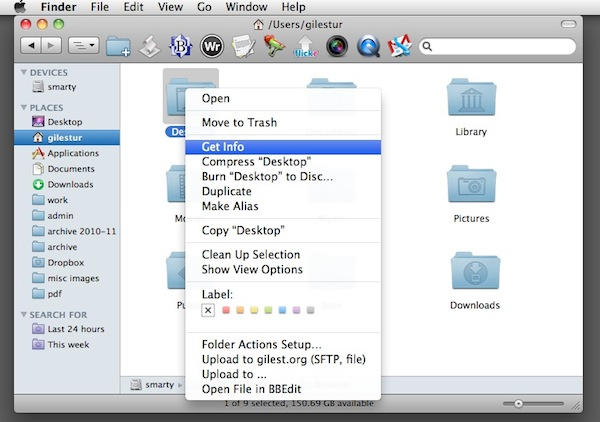
A Finder window has the Toolbar at the top. (We looked at how to customize it in Tip #11.) This is where you have controls for what you’re doing with the Finder, as well as (optionally), shortcuts to specific things like files or applications.
Today we’re looking at the sidebar to the left. It’s the place for shortcuts to locations. Here, you can put folders, drives or volumes that you want swift access to from everywhere.
New accounts will be created with what’s called a Home folder. This is the area of the filesystem where everything created and edited by you, using your user account, will be kept.
Mac OS X has a system of user accounts, similar to that found on Windows machines. Setting up user accounts on your computer is a good idea for all sorts of reasons.
Each account is a separate, ring-fenced section of the computer’s system. Stuff that User A does won’t affect stuff belonging to User B. So at their simplest level, accounts are a useful way of keeping every person’s work or activity separate. They are a good idea on family computers for that reason.
Longer answer: there’s an application called Dictionary (you can find it in your Applications folder, or search for it with Spotlight) which has detailed entries for thousands of words and phrases.
It’s natural to assume that iTunes is a monolithic one-window application, because there’s no obvious way to view your vast database of music, videos and apps in anything other than just that one window.
On a Mac, the green “Maximise” button (found alongside the yellow “Minimise” button and the red “Close” button in the top-left corner of every window) doesn’t do what you’re used to its counterpart doing on a Windows PC.
In current versions of OS X, “Maximise” really means “display the contents of this window in the most efficient way possible,” – and different applications will interpret that in different ways, and in different circumstances. The results can be frustratingly unpredictable, especially for newcomers who aren’t used to a Mac.
This is one of those simple little things that’s so obvious, and so simple, that it’s easy for newcomers to miss.
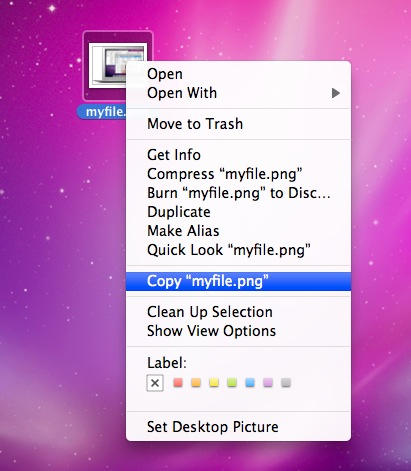
How do you rename a file on a Mac? If you’re coming from Windows, you’ll be accustomed to right-clicking on it and choosing the “Rename” menu item, but it’s not there on OS X.
Exposé is an OS X feature designed to help you move around many documents and applications quickly and easily.
All you have to do is push a button (or move your mouse in a particular way, or drag your fingers on the trackpad), and all your open windows, from all your open applications, will be displayed on screen at once, shrunk down so that you can see them all.