Add Twitter, Facebook to all Your iPhone Apps with qTweeter [Jailbreak Superguide]

Add Twitter, Facebook to all Your iPhone Apps with qTweeter [Jailbreak Superguide]

If you’re getting around now to jailbreaking your iPhone and love social media, think about adding qTweeter to your app arsenal.

There are plenty of awesome Twitter and Facebook iPhone apps, but Cult of Mac finds qTweeter a must-have because you can broadcast social media updates just by pulling the app down from the status bar, and, say, vent about your co-worker while reading a particularly annoying email (not that we would, of course), rave about a new band you’re listening to the track or ask the peanut gallery what you should have for dinner by sending them a link to a take-out menu from a web page.

This $4.99 app has been one of our favorites since it launched in 2009.  Here’s Cult of Mac’s quick guide to getting you started with it.

What you’ll need:

  • A jailbroken iPhone/iPod Touch with Cydia installed.
  • Wi-Fi and Internet access on the device.
  • qTweeter Cydia application worth $4.99

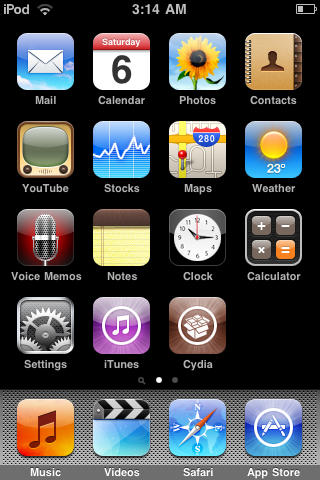
1. To start, you’ll need a jailbroken device with Cydia installed. If you need to jailbreak your device, please check out our jailbreak guides. Press the Cydia icon to open it.
Add Twitter, Facebook to all Your iPhone Apps with qTweeter [Jailbreak Superguide]

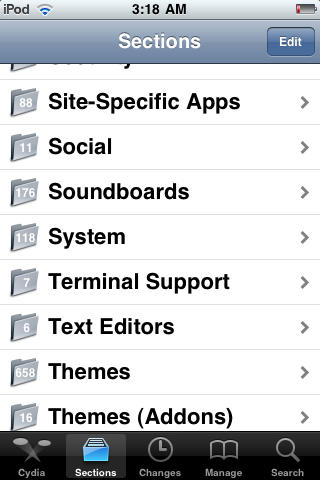
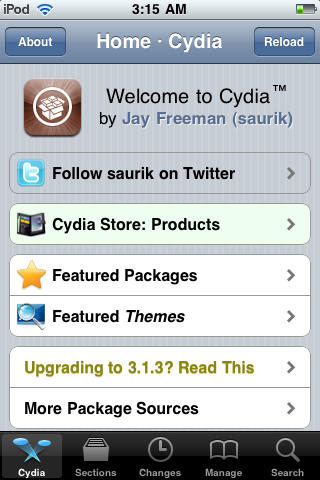
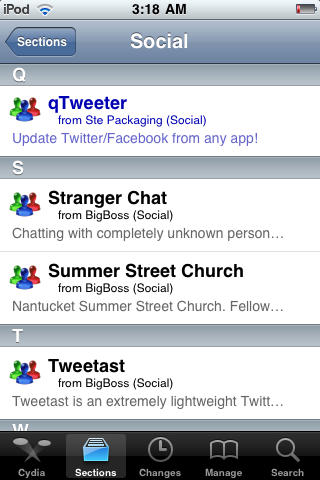
2.  After Cydia is done refreshing, choose the ‘Sections’ tab and then select the
‘Social’ category.
Add Twitter, Facebook to all Your iPhone Apps with qTweeter [Jailbreak Superguide]

Add Twitter, Facebook to all Your iPhone Apps with qTweeter [Jailbreak Superguide]

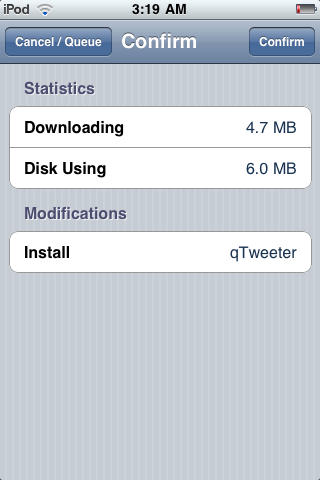
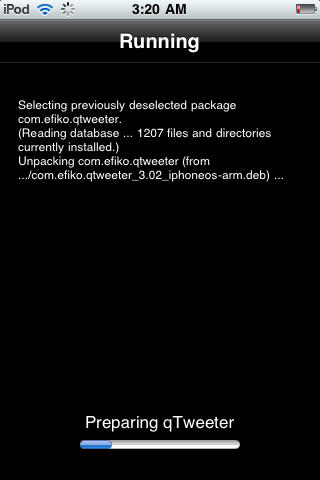
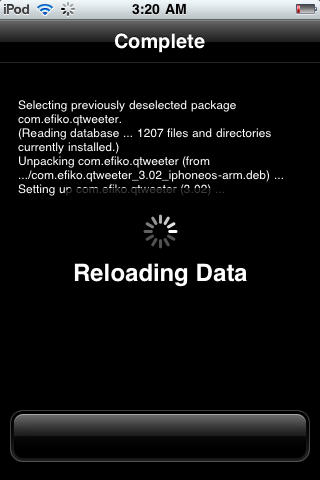
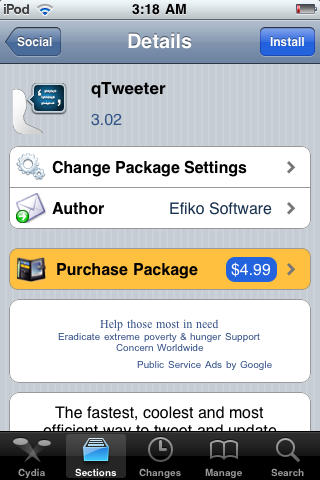
3. Open the qTweeter package and choose the ‘Purchase package’ option. Complete the purchase and begin downloading and installation.
Add Twitter, Facebook to all Your iPhone Apps with qTweeter [Jailbreak Superguide]

Add Twitter, Facebook to all Your iPhone Apps with qTweeter [Jailbreak Superguide]

Add Twitter, Facebook to all Your iPhone Apps with qTweeter [Jailbreak Superguide]

Add Twitter, Facebook to all Your iPhone Apps with qTweeter [Jailbreak Superguide]

Add Twitter, Facebook to all Your iPhone Apps with qTweeter [Jailbreak Superguide]

Add Twitter, Facebook to all Your iPhone Apps with qTweeter [Jailbreak Superguide]

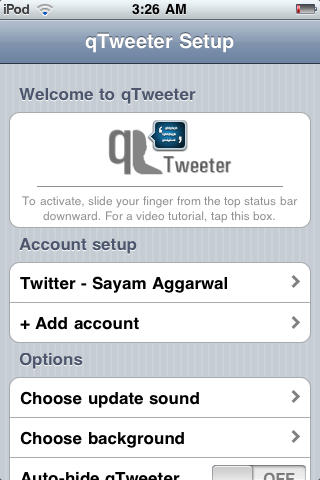
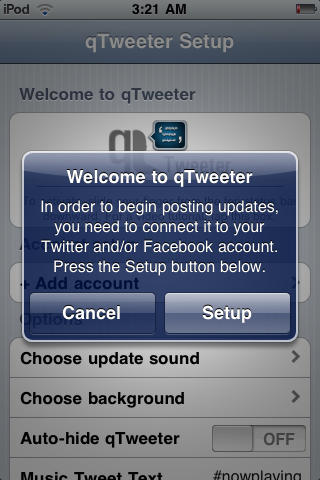
4. Open the qTweeter app on your iPhone and choose ‘Setup’ when prompted with the welcome message.

Add Twitter, Facebook to all Your iPhone Apps with qTweeter [Jailbreak Superguide]

Add Twitter, Facebook to all Your iPhone Apps with qTweeter [Jailbreak Superguide]

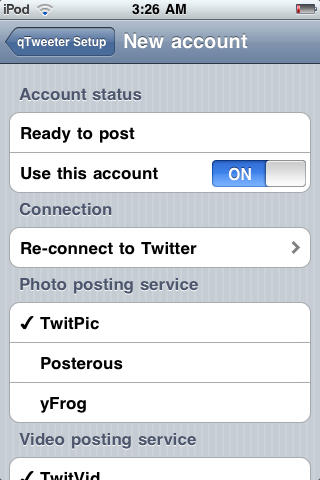
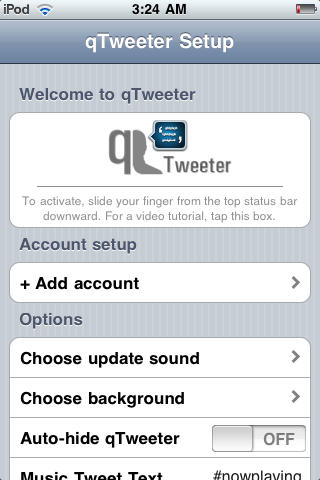
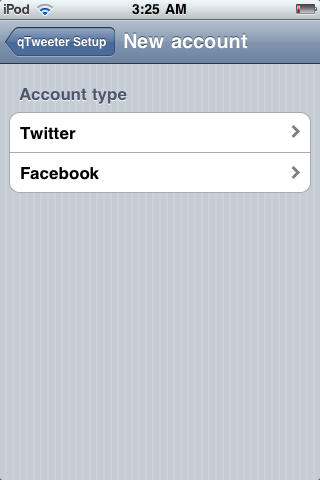
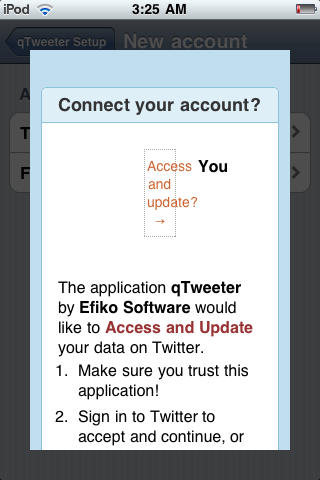
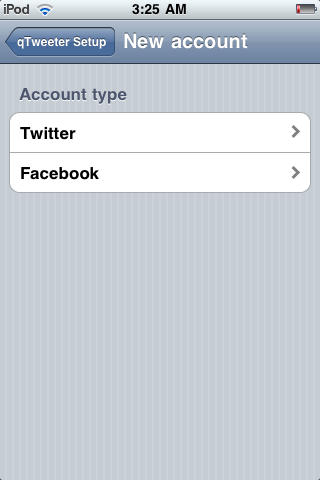
5. To add a Twitter account, select ‘Add Account’ and select ‘Twitter’ from the account type. Now it will prompt you for your Twitter login details.  Once you’ve added them, it will prompt you to allow the app access to your social media account.  Choose your preferred photo and video uploading services for the Twitter account before exiting the menu. You can add multiple Twitter accounts by repeating the above process.
Add Twitter, Facebook to all Your iPhone Apps with qTweeter [Jailbreak Superguide]

Add Twitter, Facebook to all Your iPhone Apps with qTweeter [Jailbreak Superguide]

Add Twitter, Facebook to all Your iPhone Apps with qTweeter [Jailbreak Superguide]

Add Twitter, Facebook to all Your iPhone Apps with qTweeter [Jailbreak Superguide]

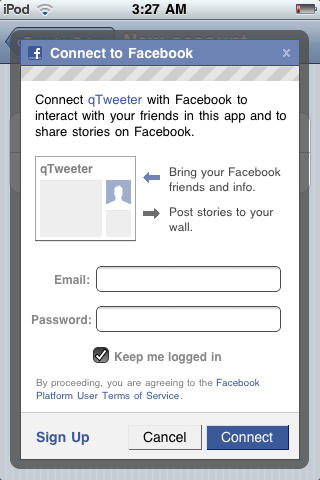
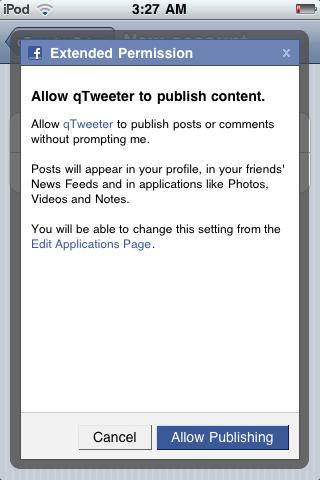
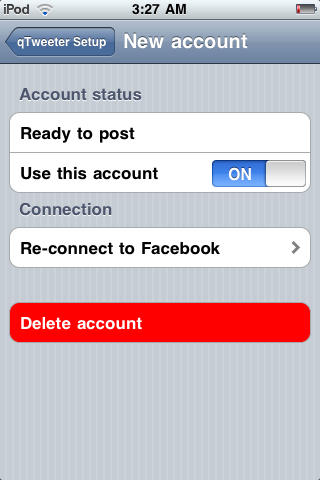
6. To add a Facebook account, the process is similar. Go back to ‘Add Account’ and select ‘Facebook’ from the account type. It will now prompt you to OK Facebook connect, then type your login details and choose ‘Allow Publishing’ when asked for Extended Permission. You can add multiple Twitter accounts by repeating the above process.
Add Twitter, Facebook to all Your iPhone Apps with qTweeter [Jailbreak Superguide]

Add Twitter, Facebook to all Your iPhone Apps with qTweeter [Jailbreak Superguide]

Add Twitter, Facebook to all Your iPhone Apps with qTweeter [Jailbreak Superguide]

Add Twitter, Facebook to all Your iPhone Apps with qTweeter [Jailbreak Superguide]

Add Twitter, Facebook to all Your iPhone Apps with qTweeter [Jailbreak Superguide]

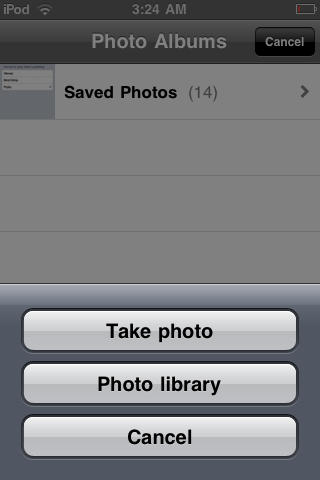
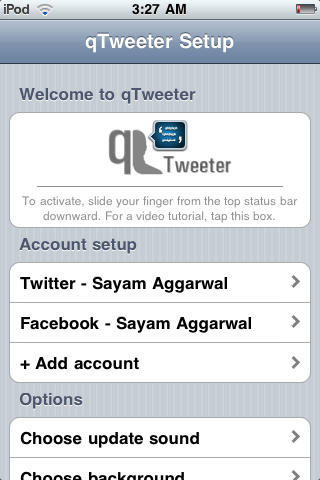
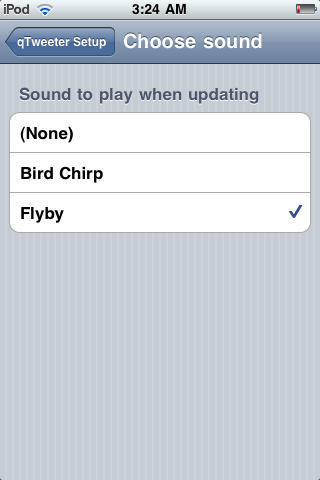
7. You can also customize standard qTweeter settings — including assigning a sound for every update published or a background image for the drop-down menu, or choosing a photo from your existing library or using the iPhone’s camera to snap something new.
Add Twitter, Facebook to all Your iPhone Apps with qTweeter [Jailbreak Superguide]

Add Twitter, Facebook to all Your iPhone Apps with qTweeter [Jailbreak Superguide]

Add Twitter, Facebook to all Your iPhone Apps with qTweeter [Jailbreak Superguide]

Add Twitter, Facebook to all Your iPhone Apps with qTweeter [Jailbreak Superguide]

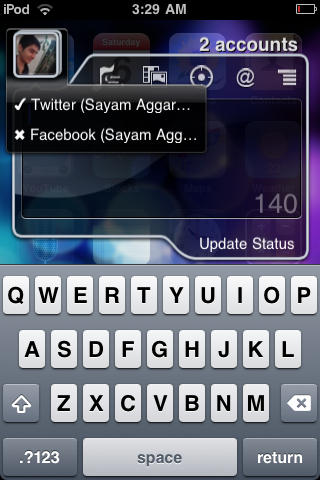
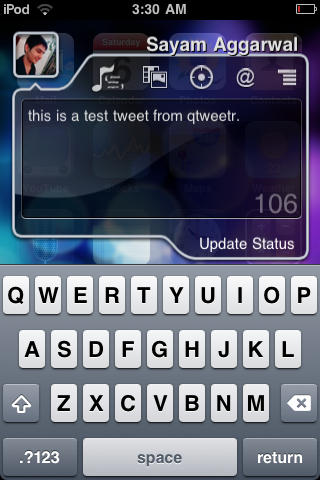
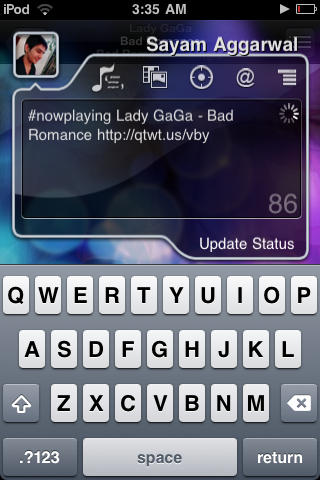
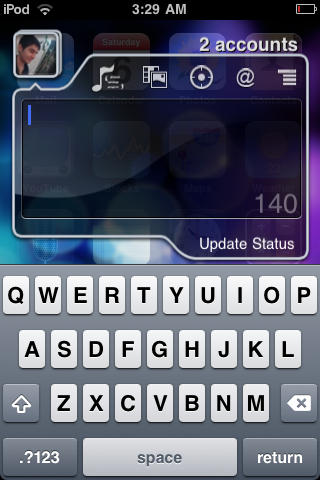
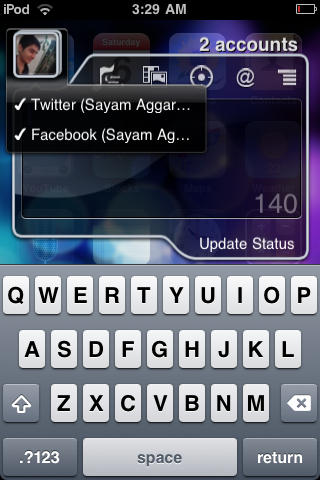
8. To update your Facebook or Twitter account, just pull down the qTweeter icon from the iPhone status bar.  You’ll be given a choice of which accounts you want to update. To update using plain text, just type and hit ‘Update Status.’
Add Twitter, Facebook to all Your iPhone Apps with qTweeter [Jailbreak Superguide]

Add Twitter, Facebook to all Your iPhone Apps with qTweeter [Jailbreak Superguide]

Add Twitter, Facebook to all Your iPhone Apps with qTweeter [Jailbreak Superguide]

Add Twitter, Facebook to all Your iPhone Apps with qTweeter [Jailbreak Superguide]

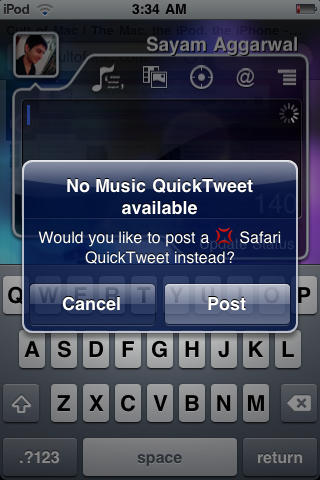
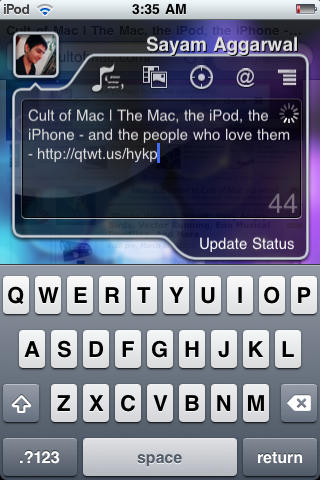
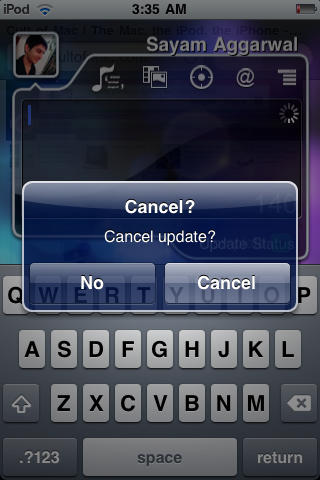
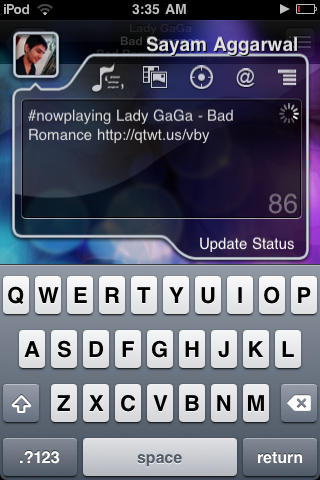
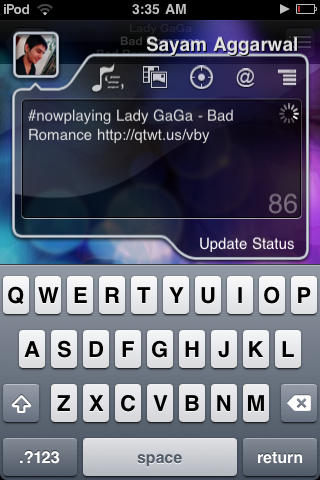
9. There are also a few other interesting features like tweeting about the song currently playing by opening qTweeter with the iPod (or Music) application and selecting the musical note icon. From Safari, you can use the app to tweet or update Facebook about the page you’re browsing and qTweeter will add a link to that page. If you’re worried about being too quick on the trigger, there is a ‘Cancel’ icon to delete.

Add Twitter, Facebook to all Your iPhone Apps with qTweeter [Jailbreak Superguide]

Add Twitter, Facebook to all Your iPhone Apps with qTweeter [Jailbreak Superguide]

Add Twitter, Facebook to all Your iPhone Apps with qTweeter [Jailbreak Superguide]

Add Twitter, Facebook to all Your iPhone Apps with qTweeter [Jailbreak Superguide]

Add Twitter, Facebook to all Your iPhone Apps with qTweeter [Jailbreak Superguide]

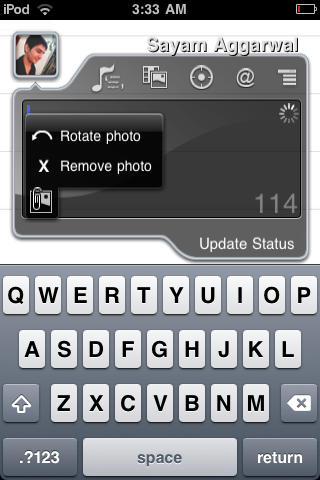
10. To send photos or videos directly from camera or iPhone library, select the photo/ video button. You’ll be able to rotate or remove the selected photo, too.

Add Twitter, Facebook to all Your iPhone Apps with qTweeter [Jailbreak Superguide]

Add Twitter, Facebook to all Your iPhone Apps with qTweeter [Jailbreak Superguide]

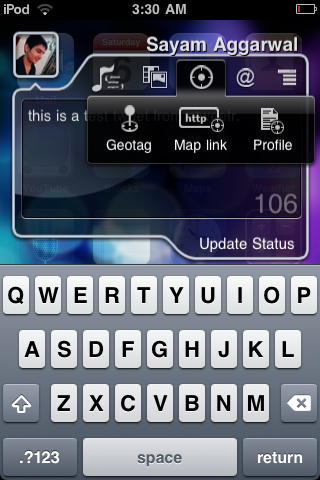
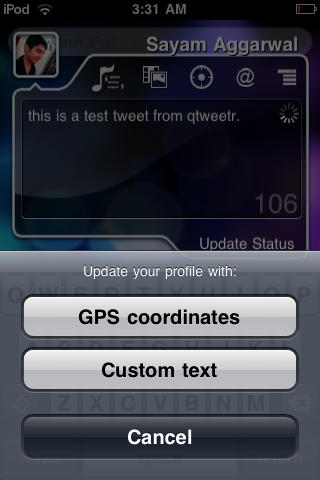
11. You can also Geotag your tweets, post a map of your location or even update your profile with your current GPS coordinates or text using the bull’s eye icon. To update your profile, select the profile button from sub-menu and then choose either ‘GPS co-ordinates’ or ‘Custom Text’ from the options.
Add Twitter, Facebook to all Your iPhone Apps with qTweeter [Jailbreak Superguide]

Add Twitter, Facebook to all Your iPhone Apps with qTweeter [Jailbreak Superguide]

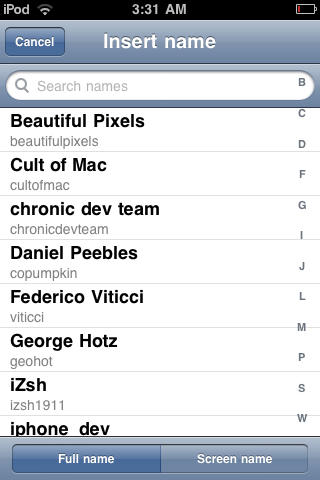
12. Another cool feature: you can @reply to any person that you follow by tapping the @button and choosing them from the list.
Add Twitter, Facebook to all Your iPhone Apps with qTweeter [Jailbreak Superguide]

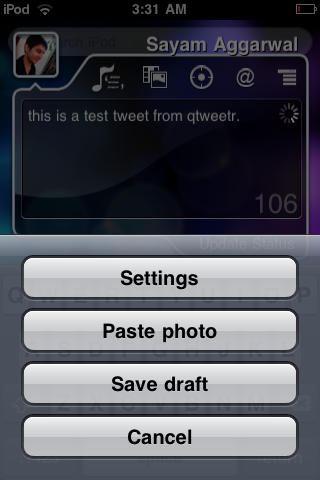
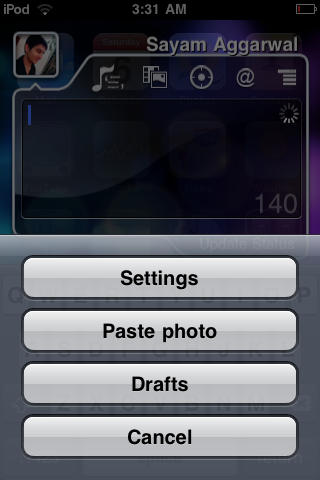
13. You can also save drafts, paste pictures and instantly reach settings using the list button or delete older drafts by choosing ‘drafts’ from the menu and deleting anything you’ve decided is better kept to yourself.
Add Twitter, Facebook to all Your iPhone Apps with qTweeter [Jailbreak Superguide]

Add Twitter, Facebook to all Your iPhone Apps with qTweeter [Jailbreak Superguide]

Add Twitter, Facebook to all Your iPhone Apps with qTweeter [Jailbreak Superguide]

DON'T MISS
Add Multiple Exchange Accounts to Your iPhone [Jailbreak Superguide]

About the author

Sayam Aggarwal

Sayam Aggarwal is a 18-year-old student living in India who has been an Apple fan for almost 5 years. He has worked with ModMyi, one of the leading iPhone communities, as an author for more than a year. He spends most of his free time on the Internet fetching the latest news regarding Apple and its entire product range. Follow him on Twitter!


(sorry, you need Javascript to see this e-mail address)| Read more posts by .

Posted in How-To, iPhone, iPhone 3G, iPhone 3G S, iPhone Apps, iPod Touch, Jailbreak, Tips & Tricks | Tagged: |

  • David

    qStatus is also available in the iPhone app store. And has been for a while now.

  • DCJ001

    Jailbreak guides from an irresponsible sixteen year old are not appreciated.

  • ben

    Do we really need ANOTHER bloody jailbreak super guide post?

    its pretty dissapointing to see an Apple dedicated website posting all the wrong sort of stuff. especially for those who dont want to ruin our ios devices

  • bob villa

    If you don’t like the article – don’t read it. don’t be a pansy about jailbreaking.

    who are you to say this is the “wrong sort of stuff.”

    i found the article useful.

  • ben

    i didnt read the article. I just skipped to the comments to point out that this website is turning into a jailbreaking website, rather than an apple website.

    If you didnt jailbreak your iphone, (which more than most havent) then all these articles are a waste of time, and rather annoying to have to jump through just to find something worthwhile to read.

    Theres already so many better communities and sources for jailbreaking information, theres no need to drag this site down with the stuff

  • kirsten

    i agree with bob because this is actually useful. people do jailbreak iphones and other devices so get over it.

  • Chris

    Here’s one suggestion for the review: The author states, “To update your Facebook or Twitter account, just pull down the qTweeter icon from the iPhone status bar.”

    At no point does a screen capture show the actual qTweeter icon in the iPhone status bar.

    Try to add a screen shot that shows this critical step in the process that makes qTweeter so important to the jailbreak process.