
100 Tips #2: Understanding The Menu Bar

20100311-menubar.jpg

The Menu Bar sits at the top of your screen at all times. Let’s take a moment to get to know it. It’s worth doing, because the Menu Bar is going to be one of your best friends.

When you used Windows, you were used to see menus inside each document window. File, Edit, all that stuff – every window had those menus built-in.

On the Mac, those menus do broadly the same job. They’re just in a different place.

And, crucially, they’re always in the same place. You know you just have to flick your pointer to the top of the screen to reach them. This means you don’t have to aim quite so carefully at a precise point on your screen.

The Menu Bar changes depending which application you’re using. The name of the current app will always be shown to the left of the Bar. Always. If you’re not sure which app you’re using, look there to find out.

Similarly, the menu options will change. Some apps have lots and lots of menus. Some only have a handful. Whatever the app you’re using can offer, it will appear up here in the Menu Bar.
20100311-applemenu.jpg

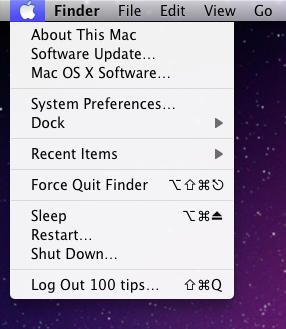
Now, look at each end of the Bar. On the far left is the Apple symbol. This is the Apple Menu, and it’s always there, no matter which application you’re using. It gives you quick access to a few essential functions – we’ll explore the Apple Menu in detail in a later post.

20100311-spotlightmenu.jpg

DON'T MISS
100 Tips #1: Understanding What’s What On The Default Mac Desktop

Finally for today: notice the magnifying glass symbol at the far right of the Menu Bar.

This is the Spotlight menu. Spotlight is a search tool that’s built into your Mac’s system. If you click on the symbol, you’ll see a text box appear. Type what you’re looking for and it will appear here. Spotlight is pretty powerful and can find all sorts of things – applications, documents, email messages, people in your Address Book. Almost anything. We’ll look at it in more detail another day.

(You’re reading the second post in our series, 100 Essential Mac Tips And Tricks For Windows Switchers. Find out more.)

About the author

gilest

Giles Turnbull is a freelance writer in England. He writes for the Press Association and The Morning News. He has a website you can ignore and a Twitter account you needn't follow.

(sorry, you need Javascript to see this e-mail address)| Read more posts by .

Posted in 100 Tips, Tips & Tricks |

  • http://macmaniaque.com The_Maclover

    I Think that the MenuBar is THE most important thing in Mac OS X because you always know “where” you are, in which app, etc..

  • skips

    Not a bad article for the uninformed. The one observation that I would have made is that the left hand group of menus with the exception of the Apple menu are reserved for the foremost application even if that application has no open windows. The right hand side of the menu bar is reserved for global menus that are not directly related to the foremost application.

    The single most common misconception that Windows users have seems to be that closing the last window for an application terminates the program. In Windows this result makes sense if there are no windows then the application cannot display its menu bar. With MacOS the inverse approach is more sensible as you can always interact with the application’s menu in the menu bar at the top of the screen.

    In any case, good luck with this series.

  • Scott

    @skips to even further complicate things, with some apps, closing the last window will quit in OSX, so it depends. Don’t get me wrong, I almost never want to quit when the last window closes (drives me crazy when I’m using windows), but the variability in behavior can be particularly confusing to a windows user.

  • http://gilest.org giles

    I’ll be doing the close window versus Quit thing in a post all of its own…

  • http://www pharaon

    Thank you so much! I hope you will write this tips everyday!

  • http://N/A Alex

    What I would like to see in a app is someone put another Menu Bar behind the present one so that with more apps wanting to put their little icons on it I’ve run out of space and have to reduce all the windows I have to get at some of them.

  • Bur

    shank yu

