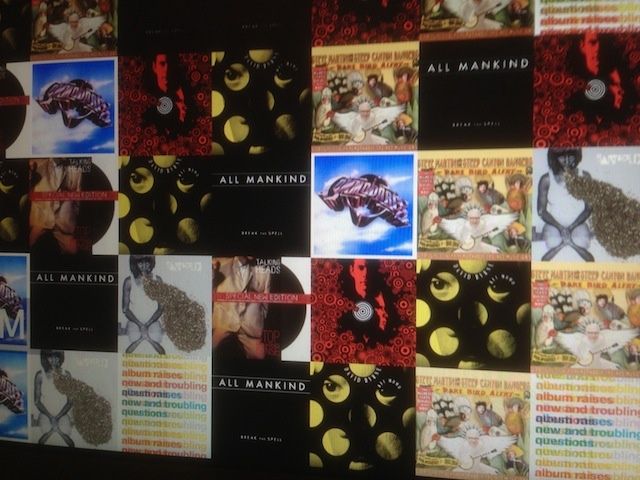
One of the trickier things about creating a playlist for any party is making sure you have the right music for the people you’ve invited. Sometimes, though, you might want to give this nerve wracking process a miss, and let the guests at your house choose the music.
Here’s how to do just that, using nothing more than your Mac and the iTunes Album Artwork screensaver.
First up, launch System Preferences from the Dock or the Apple Menu. Click on the Desktop & Screensaver icon to go to that preference pane. Scroll down the left-hand column until you see the iTunes Artwork screensaver. Click on it, and then click on Screen Saver Options… to set the number of rows and a delay. Click on OK.
If you’ve set your Hot Corners… to have one of them start your screensaver, do that now. If not, wait the amount of time you have your screensaver set to. Once the iTunes Artwork screensaver starts, you can now move your mouse around without waking up your Mac. You can click on any of the albums showing up on the screensaver to play that song. Voilà–you have a guest-controlled jukebox for your party.
You’ll need to clear the Up Next playlist in iTunes for this to work if you’re using iTunes 11.
Via: Lockergnome

Rob LeFebvre is an Anchorage, Alaska-based writer and editor who has contributed to various tech, gaming and iOS sites, including 148Apps, Creative Screenwriting, Shelf-Awareness, VentureBeat, and Paste Magazine. Feel free to find Rob on Twitter @roblef, and send him a cookie once in a while; he’ll really appreciate it.

