Recording the audio source from your Mac isn’t as easy ast it would seem. When recording a podcast, for example, many Mac podcasters use third party apps like Soundflower or external mixers to record both the audio in and the audio out of an interview, for example. Other apps, like Audio Hijack, also exist to record any sound you have occuring on your Mac, but those can be pricey, as they include many features beyond simple recording.
If you want a free, simple to use Mac audio recording software, you might want to check out WavTap.
First up, head over to the project page on the GitHub website to look through the code files, which are freely available and can be compiled on your own, or simply installed as a package file, available here. Download the package file, and install it on your Mac. You’ll need to enter your admin password once to allow it to install fully.
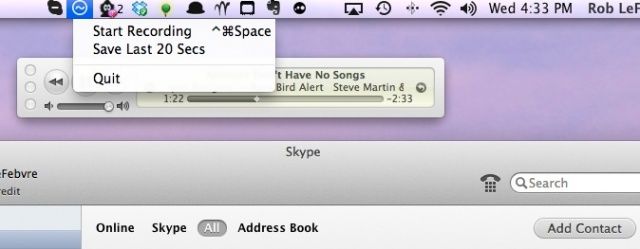
Once installed, WavZap shows up in your OS X menu bar, ready to use. Simply click on the icon, and choose Start Recording. When you’re finished, go back up to the menu and click Stop Recording. Your .wav file will be on the desktop, named with a really long number. Double click that file to play it in iTunes, or import it into Audacity or GarageBand to edit.
Source: WavTap GitHub
Via: OS X Daily

Rob LeFebvre is an Anchorage, Alaska-based writer and editor who has contributed to various tech, gaming and iOS sites, including 148Apps, Creative Screenwriting, Shelf-Awareness, VentureBeat, and Paste Magazine. Feel free to find Rob on Twitter @roblef, and send him a cookie once in a while; he’ll really appreciate it.

