Chances are if you do any kind of writing on your Mac, you’ll need a definition of a word from time to time, whether you’re writing for your job or writing for pleasure, writing an email or an anti-corporate screed for your blog.
There are many ways to get a word’s definition on your Mac, including the built-in dictionary app, using a site like Dictionary.com, or the like. Did you know, however, that the file index and search app, Spotlight, also allows you to find a definition super quick?
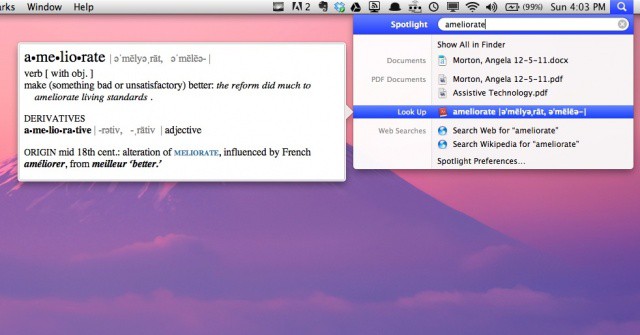
To activate this slick little feature, simple launch Spotlight with a Command-Space hit on the keyboard. When Spotlight shows up, type or paste your word into the search field.
You’ll see the Look Up section, just after the list of various documents from your Mac that Spotlight thinks you might be searching for. Hover your mouse cursor just over the Look Up line, and the definition will pop up to the left, in its own little “conversational” badge window.
Click out of Spotlight as normal to dismiss the definition bubble. It will also disappear after a few seconds. To re-activate (if you’re writing it down or some such), simply hit Command-Space again and hover over the same area.
Source: OS X Daily

Rob LeFebvre is an Anchorage, Alaska-based writer and editor who has contributed to various tech, gaming and iOS sites, including 148Apps, Creative Screenwriting, Shelf-Awareness, VentureBeat, and Paste Magazine. Feel free to find Rob on Twitter @roblef, and send him a cookie once in a while; he’ll really appreciate it.

