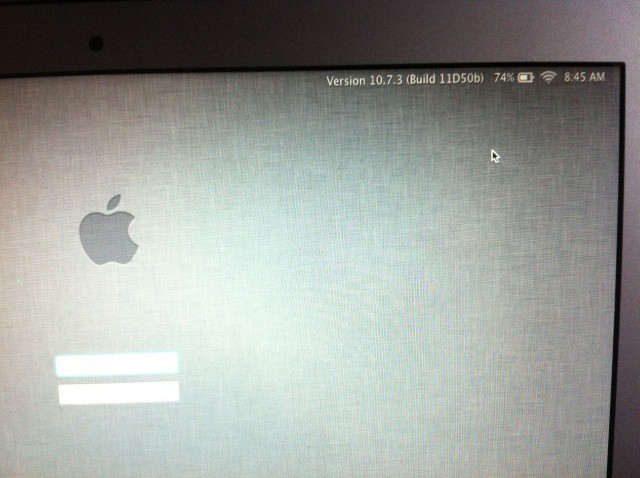
It used to be that clicking on the computer name in the login window would give various bits of system information. Sadly, Mac OS X Lion has done away with this useful little feature. Lucky for us, though, there is a Terminal command that can bring back some of the same feature to Lion.
While the info you can cycle through is limited to the OS version, IP address and computer name, it’s still a pretty handy little thing. Launch the Terminal app from the Utilities folder (located in the Applications folder) and type or paste the following code in:
sudo defaults write /Library/Preferences/com.apple.loginwindow AdminHostInfo HostName
Press the Return key when done, and log out of your account on your Mac, either by choosing Log Out from the Apple menu or pressing the Shift-Command-Q keys on your keyboard and confirming the log out command in the resulting dialog box.
Once you hit the login screen you can click in the upper right, where all the battery and WiFi info are, to cycle through the three available data points.
[Source: Mac OS X Tips]
Got an OS X tip? Need help troubleshooting OS X? Drop me a line or leave a comment below.

Rob LeFebvre is an Anchorage, Alaska-based writer and editor who has contributed to various tech, gaming and iOS sites, including 148Apps, Creative Screenwriting, Shelf-Awareness, VentureBeat, and Paste Magazine. Feel free to find Rob on Twitter @roblef, and send him a cookie once in a while; he’ll really appreciate it.

