Tired of using USB and Bluetooth dongles to power your presentations? Sick of dealing with device drivers for remote mice and remote controls that never seem to be there when you need them? How about an app for controlling presentations from anywhere in the room? Here’s a tip for you, then.
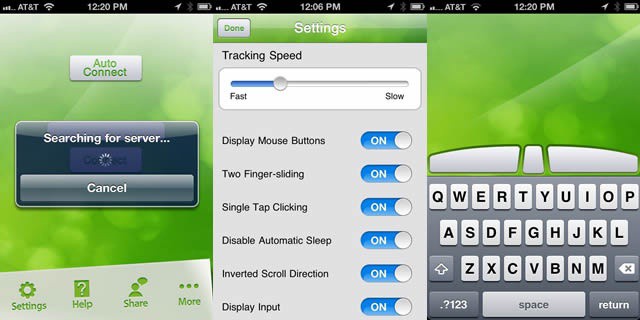
Remote Mouse, from developer Zeng Rong, is an app for the iPhone and iPod touch that emulates the mouse functions you need to run a presentation from your Mac or PC, including click, double-click, right-click, scroll, and drag. It can be used in portrait or landscape mode, and its customized function keys integrate with the default iOS keyboard to support key combos. Oh, and it’ll work on your iPad, too, upscaled, like any other iPhone or iPod touch app.
To get Remote Mouse to work, you’ll need to download an app for your presentation computer. Remote Mouse uses WiFi and 3G network connections to your presentation computer, with an Auto Connect option with WiFi. To connect over 3G, you’ll need to know your computer’s network (IP) address, and type it directly into the app.
While this isn’t a review, we thought it’d be cool to bring this sweet-looking app to your attention. Now, get presenting!
Got a tip? Need help with an iOS problem? Shoot me an email, or drop a comment below.