Apple may be the largest company known to man, well-known for its industrial design and “lifestyle” branding, but it sure could use some help in the naming department. My computer has been named Macintosh HD for as long as I can remember, and Back To My Mac is a branding opportunity gone wrong. Let’s not even get started on Mobile “Me.”
Ever wanted to change the name of your iPhone, then? What if you come up with the perfect name to change to while on a commute, nowhere near an iTunes install, and want to do just that? Well, here’s how.
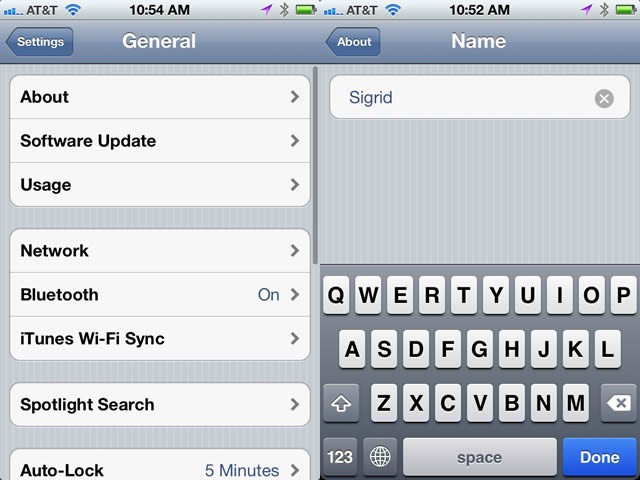
Hop on to your iPhone, pull up the Settings app, and navigate to the General Settings.
Once there, tap on the About field at the top of the screen, and then the Name field, cleverly filled in with another travesty of a name, “iPhone.”
Once tapped, the Name field can be changed to anything you like. The name of a favorite child, pet, video game character–you name it, you can add it here. Get cracking, now, and send us your best names for your iPhone.
Got a tip? Need help with an iOS problem? Shoot me an email, or drop a comment below.

Rob LeFebvre is an Anchorage, Alaska-based writer and editor who has contributed to various tech, gaming and iOS sites, including 148Apps, Creative Screenwriting, Shelf-Awareness, VentureBeat, and Paste Magazine. Feel free to find Rob on Twitter @roblef, and send him a cookie once in a while; he’ll really appreciate it.

