
If you’re selling, giving away, or scrapping an old iPhone, iPad, or iPod touch, you’re likely to plug it into iTunes and hit the restore button to remove all of your personal content and reset the device’s software back to factory settings. But did you know that you can do all that without iTunes?
Here’s how to reset your iOS device and remove all of its content and settings without iTunes.
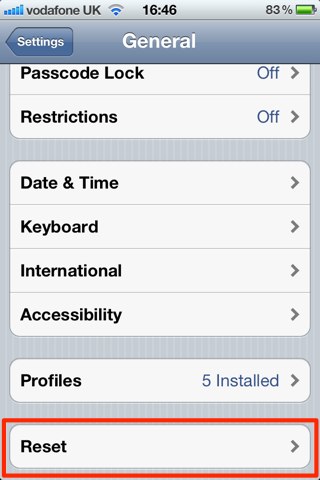
First, open up the Settings app on your device, then tab on the ‘General’ tab. Scroll to the bottom of the page and tap ‘Reset’.
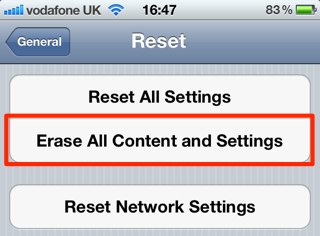
Now tap ‘Erase All Content and Settings’ and confirm your action by tapping the ‘Erase iPhone/iPad/iPod’ button.
Your device will now restore itself and once it’s finished, you will have a fresh install of iOS — as if your device was just unwrapped.

Killian Bell is a freelance writer based in the U.K. He has an interest in all things tech and also covers Android over at CultofAndroid.com. You can follow him on Twitter via @killianbell.

