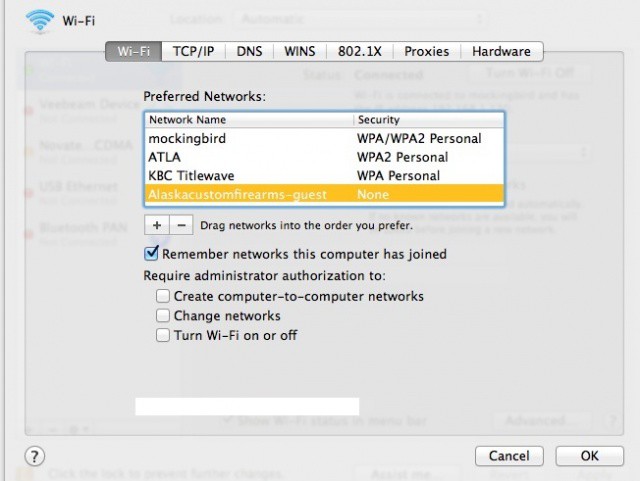
I myself have had issues with OS X Lion not remembering my home wireless network. Or, more accurately, not choosing it when waking my MacBook Air from sleep. So when I came across this tip, I figured I’d share with the rest of you.
Repairing Disk Permissions is one of those general fix-all steps recommended to fix quirky behavior on the Mac for as long as I can remember. According to the post on OS X Daily, it’s helping some users help their Macs remember their WiFi networks.
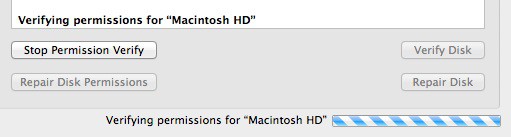
Simply launch Disk Utility, found in the /Applications/Utilities folder, and select your hard drive in the device list to the left. Click the “Repair Disk Permissions” button there at the bottom of the window, and wait for your Mac to do its thing. If you see things getting fixed, go ahead and click it again until it doesn’t find any errors.
Upgrading to Mac OS X Lion 10.7.3 is also a suggested fix, of course, as it is supposed to contain a bug fix for other WiFi stability issues. Another possible fix, posted in the comments section, involves downloading the Snow Leopard driver, which fixed things for one commenter but also broke AirDrop. Your mileage may vary, of course, but it’s good to keep in mind there are still a few options available. It didn’t fix my specific problem, but it might help you!

Rob LeFebvre is an Anchorage, Alaska-based writer and editor who has contributed to various tech, gaming and iOS sites, including 148Apps, Creative Screenwriting, Shelf-Awareness, VentureBeat, and Paste Magazine. Feel free to find Rob on Twitter @roblef, and send him a cookie once in a while; he’ll really appreciate it.

