

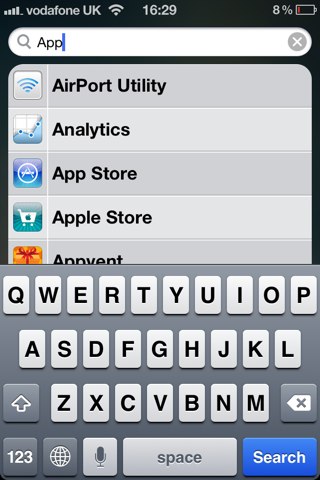
Spotlight search on an iOS device is a fantastic feature. If, like me, you have pages and pages filled with apps, it’s easy to find the one you’re looking for simply by typing the first few letters of its name into Spotlight. You can do the same with songs, contacts, messages, emails, reminders, events, and lots, lots more.
However, there may be some things you don’t want to show in Spotlight. That doesn’t mean you should avoid the feature altogether — just customize its results to suit you. It’s incredibly easy, and not only will this remove items you don’t want to see, it’ll also make it faster to find what you’re looking for.
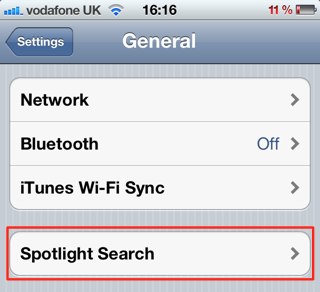
To customize your results in Spotlight, and to remove those things that you do not want to show, open the Settings app on your device and then tap on the General tab. Now tap on Spotlight Search.
You’ll be presented with a list of things that may show up when you perform a Spotlight search. Now tap on all of the items you want to remove completely from your Spotlight search results. For example, if you want to remove text messages and iMessages from your results, tap on the Messages tab to remove the blue tick next to its name.
Once you’ve removed those items that you do not want to see, you can rearrange those that you do want to see by taping and holding on the three-bar icon on the left-side of the tab, and then dragging it into place.
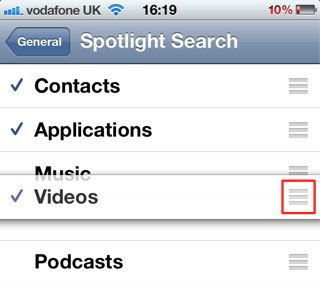
If you search for apps most frequently, you can drag this to the top so that search results for apps show above search results for anything other items.
Once you’re happy with your customizations, simply close the Settings app and begin enjoying Spotlight.

Killian Bell is a freelance writer based in the U.K. He has an interest in all things tech and also covers Android over at CultofAndroid.com. You can follow him on Twitter via @killianbell.

