

The Notification Center that ships with iOS 5 is nice, and by default it displays a stock ticker, weather, mail, and calendar entries. It all looks great and the eye candy it provides actually conceal some very useful tricks you can use to reach some of its hidden secrets. Today we’ll take a look at the stock ticker.
The stock ticker scrolls continuously, displaying information about stocks as it scrolls from right to left. If you are anxious to see a particular stock in the ticker, but don’t want to wait for it to scroll by, then just tap and hold the ticker. While tapping and holding it, swipe left or right until the stock you want to see appears on the screen. Once you let go the ticker starts ticking again.
If you double tap a particular stock in the stock ticker it opens in the Stocks app.
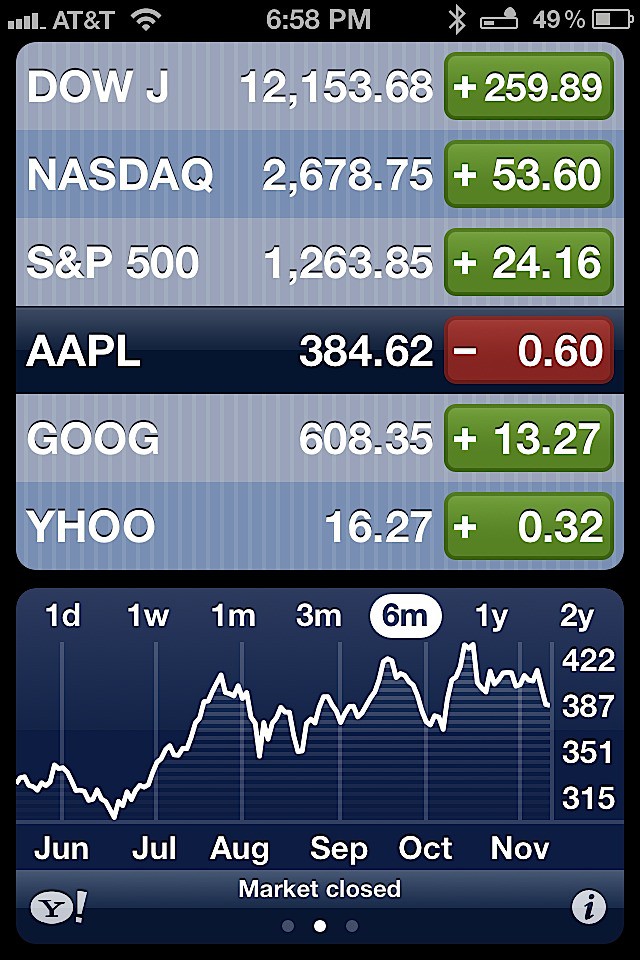
Once the Stocks app is open you can add and remove stocks to change what the stock ticker displays inside of the Notification Center.

David W. Martin has more than 20 years of experience in the industry as a programmer, systems and business analyst, author, and consultant. David has written for CNET’s iPhoneatlas.com, MacLife.com, CultofMac.com, BYTE.com and recently for aNewDoman.net. He comes to Cult of Mac’s website with deep knowledge and passion for the all things Apple. Follow David on Twitter @david_w_martin or see what he’s up to now at davidwmartin.com.

