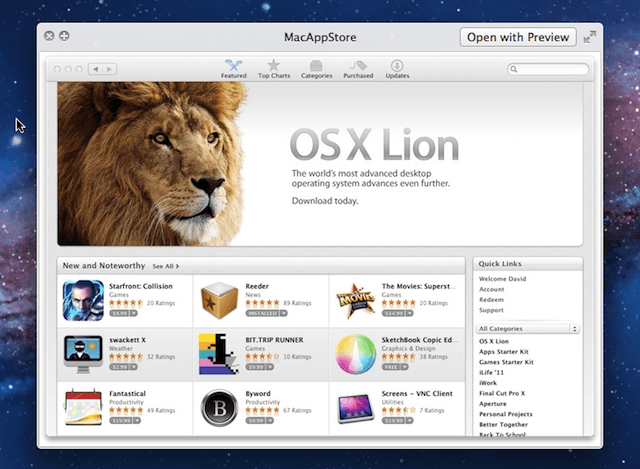

One of my favorite things about Mac OS X Lion is the introduction of new trackpad gestures that make my computing experience a lot more efficient. One of the gestures I use the most is the new swipe gesture in Quick Look.
You access Quick Look by pressing the space bar after you’ve selected it in Finder. Once it is activated you can now use a two-fingered swiping gesture in Quick Look to navigate from the left or to the right to navigate your way through the pages in a MS Office, iWork, or PDF document. If you are viewing images in a folder you can navigate through them.
If you wish you can view the document in full screen mode. You do this by placing the mouse pointer over the document being displayed in Quick Look and then you perform a pinch apart gesture using two fingers. Leaving full screen mode is just as easy just perform a pinch together using two fingers.

David W. Martin has more than 20 years of experience in the industry as a programmer, systems and business analyst, author, and consultant. David has written for CNET’s iPhoneatlas.com, MacLife.com, CultofMac.com, BYTE.com and recently for aNewDoman.net. He comes to Cult of Mac’s website with deep knowledge and passion for the all things Apple. Follow David on Twitter @david_w_martin or see what he’s up to now at davidwmartin.com.

