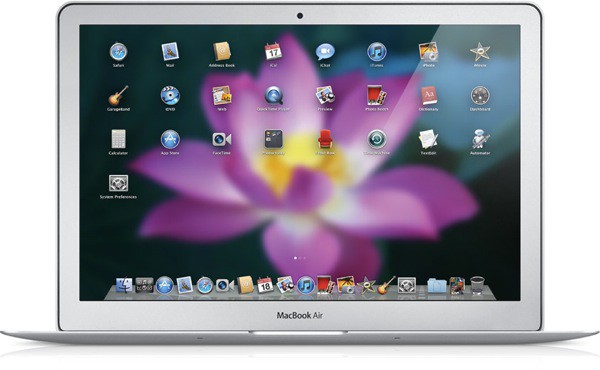
One of the hallmark user features in OS X Lion is the iOS-like Launchpad. From the Launchpad, you can view, open, organize, and manage all of your Mac apps just like the iPhone and iPad.
While some may love Launchpad, many have voiced complaints over the confusing nature of how Launchpad handles Mac apps. In this post, we’ll show you how to completely clean out your Launchpad and start over.
When you delete an app from the Mac App Store in Launchpad, you delete it completely from your machine. Apps that are downloaded from the Mac App Store can always be easily re-installed, but that’s still an issue if you’re trying to clean out your busy Launchpad.
What’s even more confusing is that non-Mac App Store apps cannot be deleted from Lion’s Launchpad. That means one thing for the end user: confusion.
If you’ve got an overwhelming amount of app icons glaring at you from your Launchpad, then we’ve got just the trick for you. The following method will totally nuke your Launchpad clean of all app icons.
Developer Loren Segal outlines the “nuclear option” through a step-by-step process in Terminal that will empty the Launchpad database. He cautions:
“Before you do this, realize that this command will delete data. If you care about how your apps are setup in Launchpad, you will want to backup the .db file below. Do it before issuing the command.”
Step 1: Open Terminal on your Mac (located in the Utilities folder).
Step 2: Backup your current Launchpad database in case you need to restore it. Type this into Terminal:
mkdir ~/Desktop/DB_Backup
Step 3: Now, enter this text to actually copy the database:
cp ~/Library/Application\ Support/Dock/*.db ~/Desktop/DB_Backup/
Step 4: Enter the following command:
sqlite3 ~/Library/Application\ Support/Dock/*.db 'DELETE FROM apps;'&& killall Dock
That’s it! You should now have a blank Launchpad. Some of your (now empty) app folders may still be there, but you can easily clear those too by dragging an app icon in and then dragging it back out. The folder will then disappear.
Let us know how this tutorial worked for you in the comments! Are you happy to have a clean, fresh Launchpad?
[via TUAW]

Alex Heath is a journalist who works for Tech Insider. He’s the former co-host of The CultCast. He has been quoted by the likes of the BBC, KRON 4 News, and books like “ICONIC: A Photographic Tribute to Apple Innovation.” He lives in Lexington, Kentucky. If you want to pitch a story, share a tip, or just get in touch, additional contact information is available on his personal site. Follow him on Twitter.


44 responses to “How to Nuke Lion’s Launchpad and Start Over”
Step 4 didn’t work because i had multiple db files in that directory and sqlite3 doesn’t accept multiple files. Instead I had to specify the specific file, it was a long combination of letters, numbers, and dashes (a serial number). This worked for me (replacing the Xs and Ys with your real file name:
ls -l ~/Library/Application Support/Dock/
That showed a file listing like this:
palanthas:~$ ls -l ~/Library/Application Support/Dock/
total 127008
-rw-r–r–+ 1 kenny staff 64966656 Feb 16 12:03 XXYXYXY-XYXY-YYYY-YXXY-YYXYXYYXYYX.db
-rw-r–r–+ 1 kenny staff 53248 Dec 31 18:52 desktoppicture.db
palanthas:~$
So, then I used that long filename instead of the *.db in the original step 4, like this:
sqlite3 ~/Library/Application Support/Dock/XXYXYXY-XYXY-YYYY-YXXY-YYXYXYYXYYX.db ‘DELETE FROM apps;’ && killall Dock